Author: Ravi Bhure

How to install wordpress on Ubuntu Gusty 7.10

How to install wordpress on Ubuntu Gusty 7.10

Introduction – To install WordPress, you should have Apache, MySQL, and PHP installed on your Linux server(typical LAMP server). If you don’t have LAMP server installed yet, then there are plenty of tutorials out there that will help you install them. Note that this walk through will probably also work for recent versions of Debian/Ubuntu Linux.

How to install the wordpress package using apt-get –

root@ravi:~# apt-get install wordpress

If you get an error message that the package wordpress cannot be found, it is most likely because you do not have multiverse servers enabled for apt-get. Here’s how to add them. First, edit /etc/apt/sources.list

root@ravi:~# vi /etc/apt/sources.list

Add the following two lines (it doesn’t particularly matter where you add them, or even if you have duplicate lines).

deb http://us.archive.ubuntu.com/ubuntu/ gusty main restricted universe multiverse
deb-src http://us.archive.ubuntu.com/ubuntu/ gusty main restricted universe multiverse

Now tell apt-get to update its package list and you should be able to find wordpress.

root@ravi:~# apt-get update

Now try to install WordPress as shown above.  Next we have to configure Apache  for WordPress

root@ravi:~# vi /etc/apache2/apache2.conf

At the bottom of the file add the following lines:

Alias /blog /usr/share/wordpress
<Directory /usr/share/wordpress>
Options FollowSymLinks
AllowOverride Limit Options FileInfo
DirectoryIndex index.php
</Directory>

You can access WordPress  with URL http://yourdomain.com/blog/.  If you want it to go somewhere else, just adjust the path accordingly.

Now we have to tell Apache to reload its configuration files.

root@ravi:~# /etc/init.d/apache2 reload

Next, we are going to create a database in MySQL for WordPress to use. First, login to MySQL Server –

root@ravi:~# mysql -u root -p

If you have never used MySQL before, the default root password is blank. Now would be a good time to set one.

Next we are going to create a database for WordPress to use. I’m going to be very imaginative and name the database “wordpress”.

mysql> CREATE DATABASE wordpress;
Query OK, 1 row affected (0.00 sec)

Now we have to create a database user for wordpress. This part is important; you could just use the same user for all of your applications, but if something went wrong, you could lose all of your data. By creating a separate MySQL user for each application, you are limiting your damage. I’m going to be imaginative again and choose the name “wordpress_user” for the WordPress database user account. You might want to pick a better password than fluffy; that’s simply what I’m using for this demonstration.

mysql> GRANT ALL PRIVILEGES ON wordpress.* TO ‘wordpress_db_user’@’localhost’ IDENTIFIED BY ‘password’ ;
Query OK, 0 rows affected (0.00 sec)

Now let’s make sure that these changes took:

mysql> FLUSH PRIVILEGES;
Query OK, 0 rows affected (0.00 sec)

We are done with MySQL now, so let’s quit.

mysql> quit;
Bye

Next we are going to modify WordPress’s configuration file to tell it about the database and user we just created for it. But first, we have to deal with a little idiosyncrasy. The Ubuntu WordPress package creates a symbolic link to /etc/wordpress/ for its configuration file, but we aren’t going to be using anything in /etc/ for our installation. So first, get rid of the symbolic link. Don’t worry, this is just deleting a link, it’s not actually deleting any files. The default wp-config.php will remain in /etc/wordpress/ if you really want it.

root@ravi:~# rm  /usr/share/wordpress/wp-config.php

Now copy the sample configuration over to the main configuration location.

root@ravi:~# cp /usr/share/wordpress/wp-config-sample.php /usr/share/wordpress/wp-config.php

Now let’s edit the configuration.

root@ravi:~# vi /usr/share/wordpress/wp-config.php

Remember the database name, user account, and password that we just set in MySQL? We are going to input these into the configuration file and save it.

define(‘DB_NAME’, ‘wordpress’); // The name of the database
define(‘DB_USER’, ‘wordpress_DB_user’); // Your MySQL username
define(‘DB_PASSWORD’, ‘password’); // …and password
define(‘DB_HOST’, ‘localhost’); // 99% chance you won’t need to change this value

We’re almost done. Now we just use WordPress’s built-in installation script. Go to http://yourdomain.com/blog/wp-admin/install.php and follow the directions. Write down the auto-generated password it gives you.

Now we’re going to login to WordPress. Go to http://yourdomain.com/blog/wp-login.php and login with the account ‘admin’ and the password you just wrote down. Now everything is working! The first thing you should do is change the password to the admin account. This option can be accessed from the “Users” tab along the top of the screen.

We have one more thing to do. We’re going to install a plugin for WordPress called “Spam Karma”. This plugin will defend your site from comment spam, which is a much bigger problem than you’d realize, especially if your site starts getting really popular. Luckily, it’s very easy to install the plugin. Go to the plugins directory, download the plugin using wget, and unzip it.

root@ravi:~#cd /usr/share/wordpress/wp-content/plugins/
root@ravi:~#wget http://wp-plugins.net/sk2/sk2_final.zip
root@ravi:~#unzip sk2_final.zip

Now, go back into the admin console of your blog, go to the Plugins tab, and click on the Activate button next to Spam Karma.
That’s it; you’re done! Try writing your first post on WordPress, or configure your site’s look and feel.

Thanks
Ravi Bhure

Installing Zabbix (Server and Agent) On Ubuntu Gusty7.10

Installing Zabbix (Server and Agent) On Ubuntu Gusty7.10

Introduction –  Zabbix is a solution for monitoring applications, networks, and servers. With Zabbix you can monitor multiple servers at a time, using a Zabbix server that comes with a web interface (that is used to configure Zabbix and holds the graphs of your systems) and Zabbix agents that are installed on the systems to be monitored. The Zabbix agents deliver the desired data to the Zabbix server. This tutorial shows how you can install the Zabbix server and agent on a Ubuntu Gusty 7.10.

I will use the system SFPAZABBIX with the IP address 192.168.3.180 as the Zabbix server, and I’ll install a Zabbix agent on the same system –

The Zabbix server can store its information in a MySQL or PostgreSQL database. We use MySQL here, so we install the MySQL server and client first using apt-get –
root@ravi:~# apt-get install mysql-server mysql-client

Create a password for the MySQL user root (replace yourrootsqlpassword with the password you want to use) –
root@ravi:~# mysqladmin -u root password  yourrootsqlpassword

Installing apache2 php5 for web interface –

root@ravi:~# apt-get install apache2 php5 php5-gd

Afterwards, we can install the Zabbix server, Zabbix agent, and the Zabbix web interface with a single command –
root@ravi:~# apt-get install zabbix-server-mysql zabbix-frontend-php zabbix-agent

Apt installation will be asked a few questions-

Like mysql root user password and Zabbix database password, give mysql root password there that we created already.

This should create a MySQL database called Zabbix.

Next we must edit the Zabbix agent configuration in /etc/zabbix/zabbix_agentd.conf.

Replace Server=localhost with Server=127.0.0.1 (to avoid lookup problems of localhost) and specify the hostname of the current system in the Hostname line.

root@ravi:~# vi /etc/zabbix/zabbix_agentd.conf

[…]

Server=127.0.0.1

[…]

Hostname=SFPAZABBIX

[…]

root@ravi:~#

Then we restart the Zabbix agent –

root@ravi:~# /etc/init.d/zabbix-agent restart

Finally, we must specify the password of our zabbix MySQL user in the Zabbix web interface configuration –

root@ravi:~# vi /etc/zabbix/dbconfig.php

<?php
$DB_TYPE=’MYSQL’;
$DB_SERVER=’localhost’;
$DB_DATABASE=’zabbix’;
$DB_USER=’root’;
$DB_PASSWORD=’mysqlrootpassword’;

?>

root@ravi:~#

Restart services for zabbix server & agent –

/etc/init.d/zabbix-server restart

/etc/init.d/zabbix-agent restart

That’s it. you can access  Zabbix  webbased admin panel check URL http://SFPAZABBIX/zabbix or http://192.168.3.180/zabbix
>zabbix1

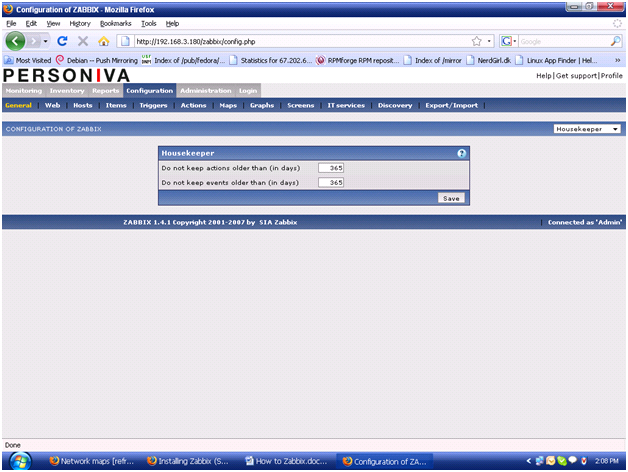
Afterwards, go to Configuration TAB and configure Zabbix!
zabbix2
If you have problems with Zabbix, please check the Zabbix logs – * /var/log/zabbix-agent/zabbix_agentd.log
* /var/log/zabbix-server/zabbix_server.logThe Zabbix configuration files for the server, agent, and web interface are as follows –

* /etc/zabbix/apache.conf
* /etc/zabbix/dbconfig.php
* /etc/zabbix/zabbix_agentd.conf
* /etc/zabbix/zabbix_server.conf

Taking backup of Zabbix server database using below script –

#!/bin/bash
# script for dumping the contents of a zabbix MySQL database
# this script will create a compressed mysqldump of the specified database
savePath=/zabbix/
fileName=”ZabbixDBbackup” # filename for the backup note the
dateVar=$(date +%Y-%m-%d) # date variable to append to filename
mysqldump -u root -p(mysqlpassword) zabbix | gzip > $savePath$fileName-$dateVar.gz

Schedule cronjob for Zabbix is as follows –

@daily /bin/sh /zabbix/backupforzabbix.sh         #zabbix db backup daily midnight

Append existing zabbix db backup on zabbix db –

Go to where is the zabbix db backup path ( i.e. /zabbix), check date & go for newer date when zabbix was running in good condition.
(ls -l commands output give you the newer date)

Unzip the compressed file and rename it to dbfilename.sql  (with sql extension)

Now go to mysql CLI prompt –

root@ravi:~# mysql -u root -p

mysql> use zabbix;

mysql> \. filename.sql

above command append the tables of zabbix database.

Thanks
Ravi Bhure


Network Monitoring With ntop

Network Monitoring With ntop

ntop is a network traffic tools that shows network usage in a real time. One of the good things about this tool is that you can use a web browser to manage and navigate through ntop traffic information to better understand network status.

Also Ntop monitors and reports hosts traffic and supports these protocols:

  • TCP/UDP/ICMP
  • (R)ARP
  • IPX
  • DLC
  • Decnet
  • AppleTalk
  • Netbios
  • TCP/UDP

In this tutorial we’ll install ntop 3.2 in Redhat Enterprise Linux 5

Prerequisites

Ntop 3.2
LIBPCAP
GDBM

Links

http://dag.wieers.com/rpm/packages/ntop

for LIBPCAP & GDBM packages check installation media of RHEL 5.

Installation

Installing ntop:

rpm -ivh ntop-3.2-2.el5.rf.i386.rpm

Running ntop

1- Initialize ntop:

ntop

That will initialize ntop and it will ask you to enter your username and password.

The default username: admin

Password: younewpassword

2- Start ntop service:

service ntop start

Log In To The Web Interface

ntop can be managed through a web interface. You can enter your server address in your web browser:

http://ServerIP:3000

https://ServerIP:3001

Now you can monitor your hosts and manage your ntop configuration.

ntop.png

Thanks

Ravi

MRTG on Linux

MRTG on Linux

Introduction

MRTG is wonderful tool. You can use it to monitor traffic on your router or leased server located at remote IDC. Since it is written in Perl and some code in C language, it is portable and high performance tool.

What is MRTG?

As explained in official mrtg(1) man page “The Multi Router Traffic Grapher (MRTG) is a tool to monitor the traffic load on network-links. MRTG generates HTML pages containing GIF images which provide a LIVE visual representation of this traffic. Please note following discussion based upon Red Hat Linux Enterprise version 4.

What is SNMP and why should I care?

SNMP is Simple Network Management Protocol. It is use to manage IP network devices such as servers, routers, switches etc. Administrator can find or manage network performance, solve problem or even optimize it further. For more information on official UNIX/Linux SNMP please see UCD-SNMP/NET-SNMP Tutorials and an excellent resource at Snmplink.org

Assumptions

These installation instructions assume you have:

  • Linux distribution
  • You would like to perform MRTG and snmp binary installation using rpm. If you are looking for source installation then visit author’s web site here. This page has an excellent information (systematically) to install it from source.
  • Required RPMs
    • mrtg
    • snmp
    • snmp-utils
  • Installations were tested on Red Hat Enterprise Linux version 4 & 5.

Configuration

Make sure snmp server is working. Without proper working snmp server, mrtg will not work. Therefore, first step is make sure snmp up and running. Following steps will take you gradually to configure it.

Configure SNMP

(1) Edit file /etc/snmp/snmpd.conf using text editor:

# vi /etc/snmp/snmpd.conf

Change/Modify line(s) as follows:

Find following Line:

com2sec notConfigUser  default       public

Replace with (make sure you replace 192.168.0.0/24 replace with your network IPs) following lines:

com2sec local     localhost           public
com2sec mynetwork 192.168.0.0/24      public

Scroll down bit and change:

Find Lines:

group   notConfigGroup v1           notConfigUser
group   notConfigGroup v2c           notConfigUser

Replace with:

group MyRWGroup v1         local
group MyRWGroup v2c        local
group MyRWGroup usm        local
group MyROGroup v1         mynetwork
group MyROGroup v2c        mynetwork
group MyROGroup usm        mynetwork

Again scroll down bit and locate following line:

Find line:

view    systemview     included      system

Replace with:

view all    included  .1                               80

Again scroll down bit and change:

Find line:

access  notConfigGroup ""      any       noauth    exact  systemview none none

Replace with:

access MyROGroup ""      any       noauth    exact  all    none   none

access MyRWGroup ""      any       noauth    exact  all    all    none

Scroll down bit and change:

Find lines:

syslocation Unknown (edit /etc/snmp/snmpd.conf)
syscontact Root  (configure /etc/snmp/snmp.local.conf)

Replace with (make sure you supply appropriate values):

syslocation Linux (RH4_UP4), Ravi’s Linux Router.

syscontact Ravi Bhure <ravi@indianGNU.org>
 

Start your snmp server and test it:

(a) Make sure when linux comes up snmpd always starts:

 # chkconfig snmpd on

(b) Make sure service start whenever Linux comes up (after reboot):

 # service snmpd start

(c) Finally test your snmp server:

# snmpwalk -v 1 -c public localhost IP-MIB::ipAdEntIfIndex

Install mrtg if not installed

Mrtg software may install during initial installation; you can verify if MRTG installed or not with following RPM command:

rpm -qa | grep mrtg

Use rpmfind.net to find MRTG rpm or up2date command to install MRTG software:

# up2date -v -i mrtg

Fedora Linux user can use yum command as follows to install MRTG:

# yum install mrtg

Commands to Configure mrtg

(a) Create document root to store mrtg graphs/html pages:

# mkdir -p /var/www/html/mymrtg/

(b) Run any one of the following cfgmaker command to create mrtg configuration file:

#cfgmaker --global 'WorkDir: /var/www/html/mymrtg' --output /etc/mrtg/mymrtg.cfg public@localhost

OR (make sure your FQDN resolves, in following example i’m using example.com which is my router FQDN address)

# cfgmaker --global 'WorkDir: /var/www/html/mymrtg' --output /etc/mrtg/mymrtg1.cfg public@example.com

(c) Create default index page for your MRTG configuration:

# indexmaker --output=/var/www/html/mymrtg/index.html /etc/mrtg/mymrtg1.cfg

(d) Copy all tiny png files to your mrtg path:

# cp -av /var/www/mrtg/*.png /var/www/html/mymrtg/
 

(e) Create /etc/httpd/conf.d/mymrtg.conf and write just one line

Alias /mymrtg /var/www/mymrtg

Save and exit.

First test run of mrtg

(a) Run mrtg command from command line with your configuration file:

# mrtg /etc/mrtg/mymrtg1.cfg

Note: You may get few warning message for first time; ignore them.

(b) Fire your favorite web browser (like FireFox 😀 ) and type url http://www.your.com/mymrtg/ or http://your-ip/mymrtg/

Create crontab entry so that mrtg graph / images get generated every 5 minutes

(a) Login as a root user or login as a mrtg user and type following command:

# crontab -e

(b) Add mrtg cron job entry to configuration file (append following line to it):

*/5 * * * * /usr/bin/mrtg /etc/mrtg/mymrtg1.cfg --logging /var/log/mrtg.log

Save file and you are done with MRTG config issues 🙂

NOw NJoy MRTG.

Thanks

Ravi

Alert mail for low disk space

Alert mail for low disk space

Few months ago I wrote a script that mail to admin for low disk space Shell script to monitor or watch the disk space but now here we improved the script in few better steps.

#!/bin/bash

# Shell script to monitor or watch the low-disk space
# It will send an email to $ADMIN, if the (free avilable) percentage
# of space is >= 90%
# ————————————————————————-
# Linux shell script to watch disk space (should work on other UNIX oses )
# SEE URL: http://www.indiangnu.org
# set admin email so that you can get email
# set alert level 90% is default

PATHS=”/”

AWK=/bin/awk

DU=”/usr/bin/du -ks”

GREP=/bin/grep

DF=”/bin/df -k”

TR=/usr/bin/tr

SED=/bin/sed

CAT=/bin/cat

MAILFILE=/tmp/mailviews$$

MAILER=/bin/mail

mailto=”ravi@indianGNU.org”

for path in $PATHS

do

DISK_AVAIL=`$DF $path | $GREP -v “Filesystem” | $AWK ‘{print $5}’|$SED ‘s/%//g’`

if [ $DISK_AVAIL -gt 90 ];then

echo “Please clean up your stuff \n\n” > $MAILFILE

$CAT $MAILFILE | $MAILER -s “Clean up stuff” $mailto

fi

done

Thanks

RAvi

What is “write” Command ?

What is “write” Command ?

The write command enables you to write an actual message on the other terminal online. You have to issue the write command with the login ID of the user with whom you want to communicate. The write command informs the user at the other end that there is a message from another user. write pastes that message onto the other user’s terminal if their terminal’s write permissions are set. Even if they are in the middle of an edit session, write overwrites whatever is on the screen. The edit session contents are not corrupted; you can restore the original screen on most editors with Ctrl-L.

write is mostly used for one-way communication, but you can have an actual conversation as well.

example: write user [ttyname]

With Regards,

Ravi Bhure

Taking backup on Tape

Taking backup on Tape

#!/bin/bash -x
# This script is useful for taking backup on Tape
# Tested on CentOS 3.8, CentOS 4.4
# For further info please login http://indianGNU.org or
# mail ravi <at> indianGNU.org

##### DECLARE AND INITIALIZE VARIABLES #####
### File with the full path names ###
DATE=`date +%m-%d-%g`
LOGDIR=/usr/local/admin/backup
BKDIR=/root/backup
TAPE1=$BKDIR/tape1
TAPE2=$BKDIR/tape2
TOC1=$LOGDIR/backup.$DATE/toc1
TOC2=$LOGDIR/backup.$DATE/toc2
ERR=$LOGDIR/backup.$DATE/errorlogs
GTAR=/bin/gtar
TAPE=/dev/st0
MT=/bin/mt
CP=/bin/cp
mkdir /usr/local/admin/backup/backup.$DATE

### Loop the the backup directory files ###
sleep 60
#$TIME > $TOC1
if [ -f “$TAPE1” ]; then
$MT -f $TAPE rewind;
$GTAR -cvf $TAPE -V “Tape1-Full.$DATE” $TAPE1
$CP $TAPE1 $TAPE2 $LOGDIR
for DIR1 in `cat $TAPE1`
do
$GTAR –exclude “simulation” -cvf $TAPE $DIR1 >> $TOC1 2>> $ERR
sleep 60;
done
$GTAR -cvf $TAPE $TOC1
$MT -f $TAPE rewoff
fi

### Loop the the backup directory files ###
sleep 180
#$TIME > $TOC2
if [ -f “$TAPE2” ]; then
$MT -f $TAPE rewind;
$GTAR -cvf $TAPE -V “Tape2-Full.$DATE” $TAPE2
for DIR2 in `cat $TAPE2`
do
$GTAR –exclude “simulation” -cvf $TAPE $DIR2 >> $TOC2 2>> $ERR
sleep 60;
done
$GTAR -cvf $TAPE $TOC2
$MT -f $TAPE rewoff
fi

#################################################
# Needed Additions to the backup script are: #
# Put table of contents on the end of the tape #
# Rotate through four sets of table of contents #
# in /usr/local/admin/backups #
#################################################

Thanks & Regards

Ravi Bhure 

Capturing a UNIX terminal session!

Capturing a UNIX terminal session!

One of the best methods to capture a Unix terminal session is to use the `script` command.

In this example we start a script session, run a couple of commands, and then use the `exit` command to stop capturing the terminal session:

$ script
Script started, output file is typescript
$ pwd
/home/will
$ ps
  PID  TT  STAT      TIME COMMAND
11909  p0  Ss     0:00.05 -bash (bash)
25622  p0  S+     0:00.01 script
25623  p1  Ss     0:00.01 /usr/local/bin/bash -i
25624  p1  R+     0:00.00 ps
$ exit
 
Script done, output file is typescript

We have now captured our terminal session into the file “typescript”.

We can use the `cat` command to view the contents of the “typescript” file:

$ cat typescript
Script started on Tue Jul 26 21:28:50 2005
$ pwd
/home/will
$ ps
  PID  TT  STAT      TIME COMMAND
11909  p0  Ss     0:00.05 -bash (bash)
25622  p0  S+     0:00.01 script
25623  p1  Ss     0:00.01 /usr/local/bin/bash -i
25624  p1  R+     0:00.00 ps
$ exit
 
Script done on Tue Jul 26 21:29:13 2005
 

If you’re new to UNIX, this concise book will tell you just what you need to get started and no more. This fifth edition is the most effective introduction to UNIX in print, covering Internet usage for email, file transfers, and web browsing. It’s an ideal primer for Mac and PC users who need to know a little about UNIX on the systems they visit. The new edition also contains many major and minor updates to help the reader navigate UNIX’s ever-expanding capabilities. In response to the popularity of Linux, the book now focuses on the popular bash shell preferred by most Linux users. A new chapter explains how to use ftp, pine for mail, and offers useful knowledge on how to surf the web. And the author has included tips throughout the text on security basics, especially in the Internet and networking sections. The book includes a completely updated quick reference card to make it easier for the reader to access the key functions of the command line.

Thanks & Regards

Ravi Bhure

Create Users And Change Passwords With A Bash Script

Create Users And Change Passwords With A Bash Script

Hi All,

These two scripts are very important for the system admin who regularly works with mail servers and somehow forgets to backup his system username and password! Let’s say somehow we lost the usernames and passwords of the mail server. In this case the admin has to manually create all the users and then change the passwords for all the users. Tedious job. Let’s make our life easier.

First create a file which contains all the user name. Something like this:

root@indiangnu.org:/home/arun# vi userlist.txt

Arun

Ravi

Nishikant

Ali

Nishit

Ameya

Yogesh

Santosh

Save the file as userlist.txt. Now create the following bash file:

root@indiangnu.org:/home/arun# vi useradd

#!/bin/sh

# This script is useful for adding user

for i in `more userlist.txt`

do

echo $i

adduser $i

done

Save the file and exit.

root@indiangnu.org:/home/arun# chmod 755 userlist.txt useradd

Now run the file :

root@indiangnu.org:/home/arun# ./useradd

This will add all the users to the system. Now we have to change the passwords. Let’s say we want username123 as password. So for user arun the password will be arun123, ravi123 for user ravi and so on.

Create another bash file as follows:

root@indiangnu.org:/home/arun# vi userpass

#!/bin/sh

# This script is useful for changing user’s password

# Changing password using this script user must have to change password after next login

for i in `more userlist.txt`

do

echo $i

echo $i”123″ | passwd –stdin “$i”

echo; echo “User $i will be forced to change password on next login!”

done


Save the file and exit.

root@indiangnu.org:/home/arun# chmod 755 userpass

Run the file. All the passwords are changed.


The useradd and password changed one time bash script is available below

root@indiangnu.org:/home/arun# vi adduser

#!/bin/sh

# This user.sh script is useful for creating

# bulk number of user account with their password

# This script created by Ravi Bhure (date:14/01/2008)

# For further info please login http://indianGNU.org or

# mail ravi <at> indianGNU.org

#

for i in `more userlist.txt`

do

echo $i

adduser $i

echo $i”123″ | passwd –stdin “$i”

echo; echo “User $i’s password changed!”

echo; echo “User $i will be forced to change password on next login!”

done

====================================================== 

changed the permission 755 “useradd” file.


Thank You

Ravi Bhure

Is 2008 going to be the year of Linux?

Is 2008 going to be the year of Linux?

It has been years since we started talking about the ‘year of Linux’. Finally, good news for open source buffs? Well, we really can’t predict that. But, there is a hope that the coming time could be a real turning point in the history of open source, making 2008 the year of Linux on desktop. Though Linux will not be a direct replacement for Windows,we are definitely going to see a major increase in the number of end-users adopting Linux. PC giant Dell, at the beginning of this year, gaveus a positive sign by introducing Linux computers. A number of other vendors are also betting high on Linux. Ubuntu has already received recognition among mobile users and server market. Linux Desktop, though gradually, is gaining momentum. At this point in time, we can only wait and watch the game!


Thank you,

Ravi Bhure.