Author: Arun Bagul

How to rename files extension in given directory recursively?

How to rename files extension in given directory recursively?

Introduction-

The UNIX/Linux Administrator or programmers have difficulties to solve this kind of quiries. Many times we need to rename perticular files within the given directories for example
we have to rename all the text file to conf file ie *.txt file to *.conf file….

We can use Pattern matching with String Operators in Shell scripting —

root@arunbagul:/home/arun/templates# touch main.txt data.txt readme.txt sample.txt demo.txt
root@arunbagul:/home/arun/templates# ls
data.txt demo.txt main.txt readme.txt sample.txt
root@arunbagul:/home/arun/templates#
Suppose you have thousands of *.txt files in given directory –

It is very difficult to rename this files to some other extension like *.conf
Take the above case and we will try to rename *.txt file by using shell script

root@arunbagul:/home/arun# ls -l /home/arun/templates/
total 0
-rw-r–r– 1 root root 0 2008-03-13 16:29 apache.conf
-rw-r–r– 1 root root 0 2008-03-14 02:50 data.txt
-rw-r–r– 1 root root 0 2008-03-14 02:50 demo.txt
-rw-r–r– 1 root root 0 2008-03-14 02:50 main.txt
-rw-r–r– 1 root root 0 2008-03-14 02:50 readme.txt
-rw-r–r– 1 root root 0 2008-03-14 02:50 sample.txt
root@arunbagul:/home/arun#

** In above “/home/arun/templates/” directory there are few *.txt files and
we will rename this files as *.conf files. There is apache.conf file, which will not rename.

root@arunbagul:/home/arun# ll /home/arun/templates/
total 0
-rw-r–r– 1 root root 0 2008-03-13 16:29 apache.conf
-rw-r–r– 1 root root 0 2008-03-14 02:50 data.txt
-rw-r–r– 1 root root 0 2008-03-14 02:50 demo.txt
-rw-r–r– 1 root root 0 2008-03-14 02:50 main.txt
-rw-r–r– 1 root root 0 2008-03-14 02:50 readme.txt
-rw-r–r– 1 root root 0 2008-03-14 02:50 sample.txt
root@arunbagul:/home/arun#

Now run our command as given below..

root@arunbagul:/home/arun# ./rename.sh /home/arun/templates txt conf
Rename all the *.txt files as .conf files…
Directory is = /home/arun/templates
renaminng /home/arun/templates/main.txt to /home/arun/templates/main.conf
renaminng /home/arun/templates/apache.txt to /home/arun/templates/apache.conf
renaminng /home/arun/templates/sample.txt to /home/arun/templates/sample.conf
renaminng /home/arun/templates/demo.txt to /home/arun/templates/demo.conf
renaminng /home/arun/templates/data.txt to /home/arun/templates/data.conf
renaminng /home/arun/templates/readme.txt to /home/arun/templates/readme.conf
root@arunbagul:/home/arun#

root@arunbagul:/home/arun# ls -l /home/arun/templates/
total 0
-rw-r–r– 1 root root 0 2008-03-13 16:29 apache.conf
-rw-r–r– 1 root root 0 2008-03-14 02:50 data.conf
-rw-r–r– 1 root root 0 2008-03-14 02:50 demo.conf
-rw-r–r– 1 root root 0 2008-03-14 02:50 main.conf
-rw-r–r– 1 root root 0 2008-03-14 02:50 readme.conf
-rw-r–r– 1 root root 0 2008-03-14 02:50 sample.conf
root@arunbagul:/home/arun#

Supose After some time we want to revert back!! ie want to rename *.conf file as *.
Run the above command and change the extension on command line as shown below

root@arunbagul:/home/arun# ./rename.sh /home/arun/templates/ conf txt
Rename all the *.conf files as .txt files…
Directory is = /home/arun/templates
renaminng /home/arun/templates/demo.conf to /home/arun/templates/demo.txt
renaminng /home/arun/templates/apache.conf to /home/arun/templates/apache.txt
renaminng /home/arun/templates/readme.conf to /home/arun/templates/readme.txt
renaminng /home/arun/templates/data.conf to /home/arun/templates/data.txt
renaminng /home/arun/templates/main.conf to /home/arun/templates/main.txt
renaminng /home/arun/templates/sample.conf to /home/arun/templates/sample.txt
root@arunbagul:/home/arun#

root@arunbagul:/home/arun# ll /home/arun/templates/
total 0
-rw-r–r– 1 root root 0 2008-03-13 16:29 apache.txt
-rw-r–r– 1 root root 0 2008-03-14 02:50 data.txt
-rw-r–r– 1 root root 0 2008-03-14 02:50 demo.txt
-rw-r–r– 1 root root 0 2008-03-14 02:50 main.txt
-rw-r–r– 1 root root 0 2008-03-14 02:50 readme.txt
-rw-r–r– 1 root root 0 2008-03-14 02:50 sample.txt
root@arunbagul:/home/arun#

Want to see the code ?

root@arunbagul:/home/arun# cat /home/arun/rename.sh
#! /bin/bash

path=$1
old_extension=$2
new_extension=$3
echo “Rename all the *.$old_extension files as .$new_extension files…”

#remove the trailing ‘/’ from end of the path
path=”${path%/}”
echo “Directory is = $path”

#Now, move/rename the files with given condition
#use ‘find’ command to find file path with given old extensions
for file_name in $(find $path -type f -name “*.${old_extension}”)
do
echo “renaminng $file_name to ${file_name%.${old_extension}}.${new_extension}”
mv -f $file_name ${file_name%.${old_extension}}.${new_extension}
done

#done
root@arunbagul:/home/arun#

NOTE :- Remember that this script is using ‘find’ command to find the files with given extensions
before renaming the files.. As ‘find’ command has no options to limit searching of files non recursively..
But still we can achieve non recursive renaming of files with same pattern matching and
string operation funcationality of shell script… please visit again!!

Thank you,

Arun Bagul

Virtualbox – Easy Virtualization solution

Virtualbox – Easy Virtualization solution

virtualbox

Introduction – VirtualBox is open source virtualization solution by Innotek GmbH (which is recently acquire by Sun Microsystem) for x86 hardware. Virtualization is a technique for hiding the physical characteristics of computing resources from the way in which other systems, applications, or end users interact with those resources. There are two types of virtualization…

  • Platform virtualization – is the combination of hardware and software. On a given hardware platform by host software (a control program), which creates a simulated computer environment, a virtual machine, for its guest software. The guest software, which is often itself a complete operating system, runs just as if it were installed on a stand-alone hardware platform.
  • Resource virtualization– is the process of virtualization of specific system resources, such as storage volumes, name spaces, and network resources. for e.g. Grid compiting, RAID devices, storage network, SAN , VPN etc.

VirtualBox is full virtualization which allows unmodified operating system with all of its installed software to run in a special environment, on top of your existing operating system. This environment, called a virtual machine, is created by the virtualization software by intercepting access to certain hardware components and certain features. The physical computer is then usually called the host, while the virtual machine is often called a guest. Guest operating system on virtual host runs same on the virtual box as it’s running on real machine.

VirtualBox is also different from so-called ‘paravirtualization’ solutions such as Xen, which require that the guest operating system be modified. In paravirtualization the virtual machine provides special API that can only be used by modifying Guest Operating System.

Presently, VirtualBox runs on Windows, Linux, Macintosh and OpenSolaris hosts and supports a large number of guest operating systems including but not limited to Windows (NT 4.0, 2000, XP, Server 2003, Vista), DOS/Windows 3.x, Linux (2.4 and 2.6), and OpenBSD. You can download VirtualBox from URL http://virtualbox.org/wiki/Downloads…

Thank you,

Arun

Ubuntu – install development , system library functions man pages

Ubuntu – install development , system library functions man pages

Introduction – some one ask me about man pages specially development related man pages, which was not installed on Ubuntu by default. System call and function related man pages are very useful to the programmers. So this article will help you to do this in two steps….

1] Search man pages –

root@arunbagul:~# apt-cache search dev man pages

* This command will display most of the packages related to man pages…

2] Install development man pages –

root@arunbagul:~# apt-get install manpages-dev
Reading package lists… Done
Building dependency tree
Reading state information… Done
…..
……
Get:1 http://in.archive.ubuntu.com gutsy/main manpages-dev 2.62-1 [1252kB]
Fetched 1252kB in 9s (137kB/s)
Selecting previously deselected package manpages-dev.
(Reading database … 113515 files and directories currently installed.)
Unpacking manpages-dev (from …/manpages-dev_2.62-1_all.deb) …
Setting up manpages-dev (2.62-1) …
root@arunbagul:~#

3] How to read man pages…

root@arunbagul:~# man 3 <func_name>
root@arunbagul:~# man 3 putc
root@arunbagul:~# man 3 system
root@arunbagul:~# man 3 exec
root@arunbagul:~#

4] Short notes on manual pages –

Types of Manual pages –

1   Executable programs or shell commands
2   System calls (functions provided by the kernel)
3   Library calls (functions within program libraries)
4   Special files (usually found in /dev)
5   File formats and conventions eg /etc/passwd
6   Games
7   Miscellaneous  (including  macro  packages and conven‐
tions), e.g. man(7), groff(7)
8   System administration commands (usually only for root)
9   Kernel routines [Non standard]
Thank  you,
Arun

andLinux – Run Ubuntu inside Windows

andLinux – Run Ubuntu inside Windows

Introduction-

andLinux is an Ubuntu system that runs seamlessly in Windows (2000, 2003, XP & Vista). It works only with 32 bit version of Windows. You can run andLinux without installing a virtual machine.
andLinux uses CoLinux as its core. CoLinux is a port of the Linux kernel to Windows. CoLinux differs itself from VMWare or Virtualbox by being more of a merger of Windows and the Linux kernel and not an emulated PC. Xming is used as X server and PulseAudio as sound server.

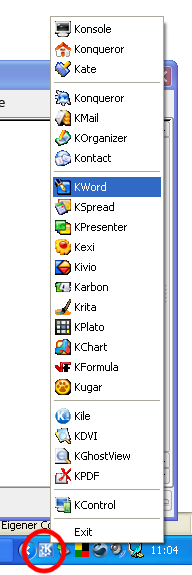
To start Linux applications, you may either use the XFCE Panel or you may choose to use the andLinux Launcher, which ships with andLinux. andLinux launcher consists of

  • Quicklaunch icons (e.g. for the file manager or the terminal)
  • Start menu in the system tray (next to the clock) which can be adapted to your own needs
  • Explorer shell extensions, i.e. context menu item, with which you can open a folder in the file manager / terminal or open a file with the text editor.
  • File type associations at your choice (e.g. for KOffice files, .tex / .dvi / .ps / .pdf files)
  • andCmd.exe to run linux commands from Windows scripts

Security warning: According to andLinux It is recommended to use andLinux only on single-user-PCs or in a trustworthy environment because the communication with the X-Server and the launcher is not secured, i.e., every user who can login to Windows can access andLinux.

Screenshot –

andlinux

Want interactive command in non-interactive mode? – use expect !!

Want interactive command in non-interactive mode? – use expect !!

Introduction- Since long time, I was thinking to write post on expect!!. and finally I start writing this post.. I am using expect tool for automation, scheduling and running commands on remote machine by using ssh in non-interactive mode. It’s very useful and handy tool for System admin specially Unix and Linux admin.

What is Expect ?

Expect is a Unix automation and testing tool, written by Don Libes. Expect has regular expression pattern matching and general program capabilities, allowing simple scripts to intelligently control programs such as telnet, ftp, and ssh, all of which lack a programming language, macros, or any other program mechanism. The result is that Expect scripts provide old tools with significantly new power, and flexibility.

Example (1) non interactive SSH login –

root@arunbagul:/home/arun# cat non-interactive.sh
#!/usr/bin/expect -f
spawn ssh arun@192.168.0.1
expect “password:”
sleep 1
send “mypassword\r”
interact

root@arunbagul:/home/arun#

root@arunbagul:/home/arun# ./non-interactive.sh
spawn ssh arun@192.168.0.1
arun@192.168.0.1’s password:
Linux arunbagul.com 2.6.22-14-generic #1 SMP Tue Feb 12 07:42:25 UTC 2008 i686

The programs included with the Ubuntu system are free software;
You have new mail.
Last login: Sat Mar 1 15:15:05 2008 from arunbagul.com
arun@arunbagul:~$ id=1200(arun) gid=1200(arun)

arun@arunbagul:~$

Example (2) non interactive SCP copy –

root@arunbagul:/home/arun# cat scp.sh
#!/usr/bin/expect -f

# set Variables
set source [lrange $argv 0 0]
set dest [lrange $argv 1 1]
set timeout -1

# connect via scp…
spawn scp $source $dest

#wait for the password to ask…
expect “password:”
sleep 1

#provide password after askinng

send “mypassword\r”

interact
#done
root@arunbagul:/home/arun#

* Now copy data to 192.168.0.1 system –

root@arunbagul:/home/arun# ./scp.sh /tmp/myfile.txt arun@192.168.0.1:/tmp/arun/
spawn scp /tmp/myfile.txt arun@192.168.0.1:/tmp/arun/
arun@192.168.0.1’s password:
myfile.txt 100% 8 0.0KB/s 00:00
root@arunbagul:/home/arun#

* Now copy data from 192.168.0.1 system to your system –

root@arunbagul:/home/arun#./scp.sh arun@192.168.0.1:/tmp/arun/myfile.txt /tmp/
spawn scp arun@192.168.0.1:/tmp/arun/myfile.txt /tmp/
arun@192.168.0.1’s password:
myfile.txt 100% 8 0.0KB/s 00:00
root@arunbagul:/home/arun#
Now you know, how this tool is powerful !!.. You can use this tool for automation purpose and where you don’t want to interact with system now and then use it…

Note:- In above two example script is non interactive means it will not ask you to inter password …. expect will do it for you…!!

Thank you,
Arun

CUPS – Open source printer server

CUPS – Open source printer server

CUPS (Common Unix Printing) system is one of the open source printer server. CUPS provides a portable printing layer for UNIX-based operating systems. It has been developed by Easy Software Products to promote a standard printing solution for all UNIX vendors and users. CUPS provides the System V and Berkeley command-line interfaces.

CUPS uses the Internet Printing Protocol (IPP) as the basis for managing print jobs and queues. The Line Printer Daemon (LPD) Server Message Block (SMB), and AppSocket (JetDirect) protocols are also supported with reduced functionality. CUPS adds network printer browsing and PostScript Printer Description (PPD) based printing options to support real-world printing under UNIX.

1] Why CUPS Printer Server ? –

CUPS is designed to eliminate the printing problem. One common printing system can be used by all UNIX variants to support the printing needs of users. Printer vendors can use its modular filter interface to develop a single driver program that supports a wide range of file formats with little or no effort. Since CUPS provides both the System V and Berkeley printing commands, users (and applications) can reap the benefits of this new technology with no changes. CUPS is based upon an emerging Internet standard called the Internet Printing Protocol (IPP), which a standard protocol for printing as well as managing print jobs and printer options like media size, resolution etc. Like all IP-based protocols, IPP can be used locally or over the Internet to printers hundreds or thousands of miles away. Unlike other protocols, however, IPP also supports access control, authentication, and encryption, making it a much more capable and secure printing solution than older ones.

Backends – Backends perform the most important task of all they send the filtered print data to the printer. CUPS provides backends for printing over parallel, serial, and USB ports, and over the network via the IPP, JetDirect (AppSocket), and Line Printer Daemon (LPD) protocols. Additional backends are available in network service packages such as the SMB backend included with the popular SAMBA software. backends are also used to determine the available devices. On startup each backend is asked for a list of devices it supports.

— printer installation, configuration, quota managment, page log and accounting etc.. will be updated soon

Thank you,

Arun Bagul

How to convert shell script in to binary executable

How to convert shell script in to binary executable

Introduction –

Some time you want your shell script to be binary executable. You can do this by using the tool called Shell script compiler (shc).
shc
creates a stripped binary executable version of the shell script specified with -f on the command line. There is no speed increase from using shc.
Its main purpose is to prevent your shell scripts from being easily modified or inspected. shc can wrap scripts written for any shell.

1] How to install shc on Ubuntu/Debian system –

root@arunbagul:~# apt-get install shc
Reading package lists… Done
Building dependency tree
Reading state information… Done
The following NEW packages will be installed:
shc
0 upgraded, 1 newly installed, 0 to remove and 0 not upgraded.
Need to get 19.7kB of archives.
After unpacking 90.1kB of additional disk space will be used.
Get:1 http://archive.ubuntu.com gutsy/universe shc 3.8.6-2 [19.7kB]
Fetched 19.7kB in 1s (14.8kB/s)
Selecting previously deselected package shc.
(Reading database … 88932 files and directories currently installed.)
Unpacking shc (from …/archives/shc_3.8.6-2_i386.deb) …
Setting up shc (3.8.6-2) …

root@arunbagul:~#

2] Sample shell script –

root@arunbagul:~# vim myscript.sh
root@arunbagul:~# cat myscript.sh
#! /bin/bash

echo -n “Welcome to shell script…”
echo -e “\n——————————–”
echo -n “Enter the number: ”
read num1

echo -n “Enter the number: ”
read num2

sum=$(expr $num1 + $num2)

echo -n “Sum to $num1 and $num2 = $sum”

echo -e “\ndone.”
root@arunbagul:~# chmod 755 myscript.sh
root@arunbagul:~#

root@arunbagul:~# ./myscript.sh
Welcome to shell script…
——————————–
Enter the number: 40
Enter the number: 50
Sum to 40 and 50 = 90
done.

root@arunbagul:~#

3] Steps to convert shell script to binary executable-

root@arunbagul:~# pwd
/root
root@arunbagul:~# ls
myscript.sh
root@arunbagul:~# shc -r -f myscript.sh

root@arunbagul:~# ls

** check in current working directory the binary file of you shell is created. You can deploy this script on any system (linux/Unix) for that you need to mention the options “-r” as shown in above command. please read shc man pages for more details.

Thank you,
Arun Bagul

Me as a Magneteer!!

Me as a Magneteer!!

I was associated with Magnet for 17 months. It was nice experience working with Magnet.I joined Magnet on 10th OCT, 2006, with around 6/7 months experience in networking and Linux. I learnt a lot during this period in Magnet. I have contributed in all areas related to System, Linux and Security in Magnet Technologies. Mr. Nirav (Nirav Mehta, Chief mentor of Magnet Technologies) who is born leader, he always inspire all the Magneteer, through conducting work shop, seminars very often and frequently. He is one of the leading person in Open Source and Free software community. I have participated in few open source conference in India, and for that Nirav Mehta and kartik Mistry has helped me. The other people associated with me are Vishal Kothari (CTO, Magnet), Nilkanth Parab (ex. Team Leader), Ameya Pandit, Ali Asgar, Jayesh Mewada, Nishit Shah, Bhavesh Vala , Suhail Thakur and Kaushik Kawa. These people are associated with me directly or indirectly. I really appreciate all the people for there support, encouragement and guidance.

What I really impressed in Magnet is the work culture of Magnet, Monday Meeting (MM), Monthly review Meeting (MoM) and Hack Festival. Thanks to Mr. Ashok (Ashok Karania, CEO and MD of Magnet Technologies) for putting wonderful idea of MM. On every Monday at 3:00pm, the Monday Meeting (MM) is schedule and which will go around 1 hour, with presentation by magneteer, appreciation notes etc. I am also thankful to HR (Aarti More, Sarita Hegde and Reshma T) for organizing cultural events, Fun Friday, Saturday Blast, Monday blast etc..

I wish all the best to all Magneteer and Magnet Technologies.

Wish you great future ahead!!

Thank you,

Arun Bagul

Asterisk md5secret password problem

Asterisk md5secret password problem

Introduction –

After upgrading the Asterisk-1.2 to new Asterisk version 1.4 … The md5secret password option in SIP configuration file was not working with new Asterisk 1.4 version…. We try to sort this problem… and finally we found the solution…..

1] Open Asterisk configuration file ‘ sip.conf ‘ and check your realm name –

[root@indianGNU.org:/etc/asterisk# cat sip.conf

[general]
port = 5060 ; Port to bind to (SIP is 5060)
bindaddr = 0.0.0.0 ; Address to bind to (all addresses on machine)
allowguest=no
#disallow=all

…..
…….
localnet=192.168.1.0/24
externip=A.B.C.D
realm=asterisk.IndianGNU.org
recordhistory=yes
videosupport=yes

;add sip_account.conf file configuration ;; note below line is not comment..
#include sip_account.conf
[root@indianGNU.org:/etc/asterisk#

2] How to generate MD5 secret password for SIP account –

[root@indianGNU.org:~# echo -n “4050:asterisk.IndianGNU.org:mypwd” | md5sum
91f55d8bd74cad9e223c2d3a326f1367 –
[root@indianGNU.org:~#

3] The format for generating the MD5 secret password is ….

[root@indianGNU.org:~# echo -n “sip_account_no:realm_name:password” | md5sum

sip_account_no = This is the SIP account name see below file
realm_name = This option is set in sip.conf file of asterisk with “realm” option
password = Password for your SIP account

4] Asterisk SIP account file (in my case ‘sip_account.conf’ )

[root@indianGNU.org:/etc/asterisk# head -n 13 sip_account.conf

[4050]

username=4050
md5secret=91f55d8bd74cad9e223c2d3a326f1367
callerid=Arun Bagul<4050>
context=for-allowme
type=friend

….
….

[root@indianGNU.org:/etc/asterisk#

5]
Now restart or reload Asterisk server and try to login register account 4050 with secrete password “mypwd” .. The account will be registered successfully…

[root@indianGNU.org:~# /etc/init.d/asterisk reload
Reloading Asterisk PBX configuration files.
[root@indianGNU.org:~#

Thank you,

Arun Bagul