Author: Arun Bagul

cPanel Server – License invalid, while changing IP address or Hostname

cPanel Server – License invalid, while changing IP address or Hostname

Introduction- cPanel is one of the leading control panel for Web hosting Server. I am using cPanel since last two years. Some time back I have installed cPanel on my Ubuntu 6.06 server for development purpose. You can installed demo version of cPanel Server , for download and more information please click here… go to “Download and Try” section near bottom.

What Happen? – Some day the public IP address assign to my cPanel server was changed due to external factor and I found new error in cPanel Server, This happened with me long time back I think before 9 to 10 months back!!

Reason – As it was demo version of cPanel Server, infact the cPanel stores the license copy issued to user as per there public IP address. If that IP address or hostname is changed you need to update the license with following commands. Still your you stuck with problem please contact to cPanel support!!

root@cpanel.arunbagul.com:~# /usr/local/cpanel/cpkeyclt

…….

root@cpanel.arunbagul.com:~#

Thank you,

Arun Bagul

How to find ALL host within Network (LAN)

How to find ALL host within Network (LAN)

Introduction-

There are many different to find out the number of hosts (machine) within network specially LAN.

Method(1)– Simplest way to use ping command with -b option… and specify broadcast address. Use ifconfig command to find the broadcast address….

root@arunbagul:/home/arun# ping -b 192.168.0.255
WARNING: pinging broadcast address
64 bytes from 192.168.0.100: icmp_seq=1 ttl=64 time=0.512 ms
64 bytes from 192.168.0.190: icmp_seq=1 ttl=64 time=0.531 ms

64 bytes from 192.168.0.232: icmp_seq=1 ttl=64 time=0.557 ms
…….

** If the number of Host within network is less (class C network), then you can below script (ping command)…

root@arunbagul:~# cat arun.sh

#!/bin/bash
for ip in $(seq 1 254);
do
ping -c 1 192.168.0.${ip} >/dev/null
if [ $? -eq 0 ]; then
echo “192.168.0.$ip is UP”
fi
done
echo “done”

root@arunbagul:~#

root@arunbagul:~# sh arun.sh
192.168.0.1 is UP
192.168.0.2 is UP

192.168.0.13 is UP
192.168.0.14 is UP
192.168.0.15 is UP
…..
…….
done

root@arunbagul:~#

Method(2) fping command

fping send ICMP ECHO_REQUEST packets to network host. fping uses the Internet Control Message Protocol (ICMP) echo request to determine if a target host is responding. fping differs from ping in that you can specify any number of targets on the command line, or specify a file containing the lists of targets to ping. Instead of sending to one target until it times out or replies, fping will send out a ping packet and move on to the next target in a round-robin fashion.

In the default mode, if a target replies, it is noted and removed from the list of targets to check; if a target does not respond within a certain
time limit and/or retry limit it is designated as unreachable. fping also supports sending a specified number of pings to a target, or looping indefinitely (as in ping ).

Options-

-a Show systems that are alive.

-A Display targets by address rather than DNS name.

-bn Number of bytes of ping data to send.

-c Number of request packets to send to each target.

-d Use DNS to lookup address of return ping packet. This allows you to give fping a list of IP addresses as input and print hostnames in the
output.

-e Show elapsed (round-trip) time of packets.

-g Generate a target list from a supplied IP netmask, or a starting and ending IP

-l Loop sending packets to each target indefinitely.

root@arunbagul:~# fping -g 192.168.0.0 192.168.0.255

ICMP Host Unreachable from 192.168.0.1 for ICMP Echo sent to 192.168.0.2
ICMP Host Unreachable from 192.168.0.1 for ICMP Echo sent to 192.168.0.3
ICMP Host Unreachable from 192.168.0.1 for ICMP Echo sent to 192.168.0.4
ICMP Host Unreachable from 192.168.0.1 for ICMP Echo sent to 192.168.0.5
ICMP Host Unreachable from 192.168.0.1 for ICMP Echo sent to 192.168.0.6

root@arunbagul:~#

OR

root@arunbagul:~# fping -g 192.168.0.0/24

ICMP Host Unreachable from 192.168.0.1 for ICMP Echo sent to 192.168.0.2
ICMP Host Unreachable from 192.168.0.1 for ICMP Echo sent to 192.168.0.3
ICMP Host Unreachable from 192.168.0.1 for ICMP Echo sent to 192.168.0.4
ICMP Host Unreachable from 192.168.0.1 for ICMP Echo sent to 192.168.0.5
ICMP Host Unreachable from 192.168.0.1 for ICMP Echo sent to 192.168.0.6
ICMP Host Unreachable from 192.168.0.1 for ICMP Echo sent to 192.168.0.7
….

root@arunbagul:~#

Method(3) nmap command –

Nmap (“Network Mapper“) is an open source tool for network exploration and security auditing. It was designed to rapidly scan large networks, although it works fine against single hosts. Nmap uses raw IP packets in novel ways to determine what hosts are available on the network, what
services (application name and version) those hosts are offering, what operating systems (and OS versions) they are running, what type of packet filters/firewalls are in use, and dozens of other characteristics. While Nmap is commonly used for security audits, many systems and network
administrators find it useful for routine tasks such as network inventory, managing service upgrade schedules, and monitoring host or service uptime.

Options –

-sL (List Scan)
The list scan is a degenerate form of host discovery that simply lists each host of the network(s) specified, without sending any packets
to the target hosts. By default, Nmap still does reverse-DNS resolution on the hosts to learn their names.

-sP (Ping Scan)
This option tells Nmap to only perform a ping scan (host discovery), This is one step more intrusive than the list scan.

-P0 (No ping)
This option skips the Nmap discovery stage altogether. Normally, Nmap uses this stage to determine active machines for heavier scanning. By
default, Nmap only performs heavy probing such as port scans, version detection, or OS detection against hosts that are found to be up.

-PS [portlist] (TCP SYN Ping)
This option sends an empty TCP packet with the SYN flag set. The default destination port is 80. A comma separated list of ports can even be
specified (e.g. -PS22,23,25,80,113,1050,35000), in which case probes will be attempted against each port in parallel.

-PU [portlist] (UDP Ping)
Another host discovery option is the UDP ping, which sends an empty (unless –data-length is specified) UDP packet to the given ports. The
portlist takes the same format as with the previously discussed -PS and -PA options

-n (No DNS resolution)
Tells Nmap to never do reverse DNS resolution on the active IP addresses it finds

-R (DNS resolution for all targets)
Tells Nmap to always do reverse DNS resolution on the target IP addresses. Normally reverse DNS is only performed against responsive (online) hosts.

root@arunbagul:~# nmap -sP 192.168.0.0/24

Starting Nmap 4.20 ( http://insecure.org ) at 2008-04-06 10:52 IST
Host arunbagul.laptop (192.168.0.1) appears to be up.
Host shekar.com (192.168.0.2) appears to be up.
Host tsantosh.desktop (192.168.0.3) appears to be up.

…….

Nmap finished: 256 IP addresses (1 host up) scanned in 5.670 seconds
root@arunbagul:~#

Method(4) NAST (Network Analyzer Sniffer Tool) –

Nast is a packet sniffer and a LAN analyzer based on Libnet and Libpcap. It can sniff in normal mode or in promiscuous mode. It dumps the headers of packets and the payload in ascii or ascii-hex format. You can apply a filter. The sniffed data can be saved in a separated file.

Options-

-i, –interface
Select the Interface, if not specified will be auto-detected.

-p, –promisc
Disable promiscuous mode on NIC.

-d, –ascii-data
Print data in ascii format.

-x, –ascii-hex-data
Print data in ascii-hex format.

-f, –filter <“filter”>
Apply <“filter”> to sniffer (see “FILTER SYNTAX” section below for syntax)

–ld <filename>
Log captured data to <filename> (only payload). Use -l to log all packet instead, useful with -B

-m, –host-list
Map the LAN by performing a series of ARP request to sequential subnet IP addresses.

-s, –tcp-stream
Follow a TCP/IP connection printing all data in payload. You must specify the IP addresses of the ends.

-g, –find-gateway
Try to find possible Internet-gateways.

-r, –reset-connection
Destroy an established connection. You must specify the IP addresses of the ends and at least one port.(?)

-S, –port-scanner
Performs a half-open port scanning on the selected host. It tries also to determine some firewall (just iptables) rules.

-M, –multi-port-scanner
Same as above (-S) but done on all hosts of the lan.

root@arunbagul:~# nast
Nast V. 0.2.0
Sniffing on:

– Device: eth0
– MAC address: XX:1X:3X:XX:0X:XX
– IP address: 192.168.XX.XX
– Netmask: 255.255.255.0
– Promisc mode: Set
– Filter: None
– Logging: None

—[ ARP ]———————————————————–
XX:XX:XX:0X:C5:FA -> XX:XX:FF:00:XX:XX
Type: ARP request: Who has 192.XX.XX.? Tell XX.XX.XX.XX
Hardware size: 6 – Protocol size: 4
Packet Number: 1

—[ UDP ]———————————————————–
192.168.X.X:1985(unknown) -> X.X.X.X:1985(unknown)
Version: 4 Total Lenght: 48 TTL: 1
Packet Number: 2

Packets Received: 4
Packets Dropped by kernel: 0
root@arunbagul:~#

root@arunbagul:~# nast -m
Nast V. 0.2.0
Mapping the Lan for 255.255.254.0 subnet … please wait

MAC address Ip address (hostname)
===========================================================
XX:XX:XX:XX:XX:XX 192.168.X.X (mygateway.com)
XX:XX:XX:XX:XX:XX 192.168.X.X (ravi.desktop)
….
……

root@arunbagul:~#

Method(5) nbtscan command –

nbtscan is a program for scanning networks for NetBIOS name information. It sends NetBIOS status query to each address in supplied range and lists received information in human readable form. For each responded host it lists IP address, NetBIOS computer name, logged-in user name and MAC address.

Options-

-v Verbose output. Print all names received from each host.

-d Dump packets. Print whole packet contents. Cannot be used with -v, -s or -h options.

-e Format output in /etc/hosts format.

-t timeout
Wait timeout seconds for response. Default 1.

-m retransmits
Number of retransmits. Default 0.

-f filename
Take IP addresses to scan from file “filename”

scan_range
What to scan. Can either be single IP or range of addresses in one of two forms: X.X.X.X/24 or X.X.X.X-24

root@arunbagul:~# nbtscan 192.18.0.0/24
Doing NBT name scan for addresses from 192.18.0.0/24

IP address NetBIOS Name Server User MAC address
——————————————————————————
192.168.0.X MINDTOOKPUG-DX <server> XXX XX:XX:XX:XX:XX:XX
192.168.0.X MUCHTHESE-DV <server> <unknown> XX:XX:XX:XX:XX:XX

……

root@arunbagul:~#

Thank you,
Arun Bagul

crontab – How it works?

crontab – How it works?

Introduction – cron is a daemon to execute scheduled commands (Vixie Cron). cron daemon has following options…

cron [-f] [-l] [-L loglevel]

Options
-f Stay in foreground mode, don’t daemonize.

-l Enable LSB compliant names for /etc/cron.d files

-L loglevel

Sets the loglevel for cron. The standard logging level (1) will
log the start of all the cron jobs. A higher loglevel (2) will
cause cron to log also the end of all cronjobs, which can be
useful to audit the behaviour of tasks run by cron. Logging
will be disabled if the loglevel is set to zero (0).

There are two type of cron job (crontab) –

1) User based cron job (crontab) –
2) System wide cron job (crontab) –

1] User based cron job (crontab) –

cron daemon searches its spool directory “/var/spool/cron/crontabs” for crontab files. After scheduling cron job by any user, the cron daemon will create file with that user name in it’s spool directory to store cron job for that user. Then cron daemon will load all cron jobs which are scheduled for each user into memory by reading contab file for each user from this spool directory. Please note that crontabs in this directory should not be accessed directly the crontab command should be used to access and update them.

root@arunbagul:~# ls -l /var/spool/cron/crontabs/
total 8
-rw——- 1 arun crontab 265 2008-03-31 19:22 arun
-rw——- 1 root crontab 317 2008-03-31 19:57 root
root@arunbagul:~#

root@arunbagul:~# ls -dl /var/spool/cron/crontabs/
drwx-wx–T 2 root crontab 4096 2008-03-31 19:57 /var/spool/cron/crontabs/
root@arunbagul:~#

root@arunbagul:~# grep crontab /etc/group
crontab:x:111:
root@arunbagul:~#

** root is the owner and crontab is the group owner of spool directory of cron daemon ie “/var/spool/cron/crontabs/”. The crontab files in spool directory is owned by respective user and group owner is “crontab”. please note the permission of spool directory and crontab files. As sticky bit is assigned on spool directory. only user can delete the crontab file(of course root also!).

For example – As shown below the crontab for user “arun” are stored in file “arun” in spool directory ie “/var/spool/cron/crontabs/arun” file.

root@arunbagul:~# cat /var/spool/cron/crontabs/arun

* 0 * * * /home/arun/update.sh

root@arunbagul:~#

How to start/stop/restart the cron daemon –

root@arunbagul:~# /etc/init.d/cron
* Usage: /etc/init.d/cron {start|stop|restart|reload|force-reload}
root@arunbagul:~#

root@arunbagul:~# /etc/init.d/cron start
* Starting periodic command scheduler crond [ OK ]
root@arunbagul:~#

root@arunbagul:~# /etc/init.d/cron restart
* Restarting periodic command scheduler crond [ OK ]
root@arunbagul:~#

root@arunbagul:~# /etc/init.d/cron stop
* Stopping periodic command scheduler crond [ OK ]
root@arunbagul:~#

NOTE – No need to reload the cron daemon after modifying the crontab file by any user.

2] System wide cron job (crontab) –

System wide setting for crontab is defined in “/etc/crontab” file and in “/etc/cron.d/” directory. The intended purpose of this feature is to allow packages that require control of their scheduling. The packages can add there crontab files to /etc/cron.d directory and such files should be named after
the package that supplies them. For example the crontab “/etc/cron.d/php5” is set by php5 package. see below… But this is not the case alway! You can use this features for customized scheduling!!

root@arunbagul:~# ls -l /etc/cron.d/
total 8
-rw-r–r– 1 root root 244 2007-03-05 12:08 anacron
-rw-r–r– 1 root root 456 2007-10-05 05:06 php5
root@arunbagul:~#

root@arunbagul:~# cat /etc/cron.d/php5
# /etc/cron.d/php5: crontab fragment for php5

# Look for and purge old sessions every 30 minutes
09,39 * * * * root [ -d /var/lib/php5 ] && find /var/lib/php5/ -type f -cmin +$(/usr/lib/php5/maxlifetime) -print0 | xargs -r -0 rm
root@arunbagul:~#

root@arunbagul:~# cat /etc/crontab
SHELL=/bin/sh
PATH=/usr/local/sbin:/usr/local/bin:/sbin:/bin:/usr/sbin:/usr/bin

# m h dom mon dow user command
17 * * * * root cd / && run-parts –report /etc/cron.hourly
25 6 * * * root test -x /usr/sbin/anacron || ( cd / && run-parts –report /etc/cron.daily )
47 6 * * 7 root test -x /usr/sbin/anacron || ( cd / && run-parts –report /etc/cron.weekly )
52 6 1 * * root test -x /usr/sbin/anacron || ( cd / && run-parts –report /etc/cron.monthly )
#
root@arunbagul:~#

a) Hourly crontab(job) –

Setting for hourly crontabs is defined /etc/crontab file . Let’s see what is there in above /etc/crontab file. First and second line in /etc/crontab file defines SHELL and executable PATH variables respectively and third line is comments.

Now we will see fourth line…

17 * * * * root cd / && run-parts –report /etc/cron.hourly

cron daemon will run the command “cd / && run-parts –report /etc/cron.hourly” at 17th minute of every hour as “root” owner. Lets see what this command is doing. “&&” operator means that if first command is successful then only execute the second command (see example below) ie “&&” is logical AND. The first command is “cd /” which will set pwd as /. Once this command is successful, next command “run-parts –report /etc/cron.hourly” will be executed..

root@arunbagul:~# ls -l && pwd
total 48
drwxr-xr-x 2 root root 4096 2006-02-25 05:19 Desktop
drwxr-xr-x 2 root root 4096 2006-02-25 05:19 Documents
drwxr-xr-x 2 root root 4096 2006-02-25 05:19 Music

/root

root@arunbagul:~#

root@arunbagul:~# ls -M && pwd
ls: invalid option — M
Try `ls –help’ for more information.
root@arunbagul:~#

command (1) run-parts – is the command which runs all the executable files , script or programs in given directory!.

–test print the names of the scripts which would be run, but don’t actually run them.

–list print the names of the all matching files (not limited to executables), but don’t actually run them. This option cannot be used with –test.

-v, –verbose
print the name of each script to stderr before running.

–report
similar to –verbose, but only prints the name of scripts which produce output. The script’s name is printed to whichever of stdout or
stderr the script first produces output on.

–reverse
reverse the scripts’ execution order.

–exit-on-error
exit as soon as a script returns with a non-zero exit code.

Now we will see what this command is doing …

root@arunbagul:~# run-parts –list /etc/cron.hourly/
/etc/cron.hourly/arun
/etc/cron.hourly/autocommit
/etc/cron.hourly/backup
/etc/cron.hourly/download
/etc/cron.hourly/ftp
root@arunbagul:~#

so all above script will be run by crontab hourly. –list option will list the script which would be run by crontab hourly and –report option will run the all scripts within given directory…

* This is how hourly schedule jobs are executed/run by cron tab.

b) Daily, Weekly and Hourly crontabs –

Setting for daily, weekly and monthly crontabs is defined in /etc/crontab file. Now we will see 5th, 6th and 7th line of /etc/crontab file…

25 6 * * * root test -x /usr/sbin/anacron || ( cd / && run-parts –report /etc/cron.daily )
47 6 * * 7 root test -x /usr/sbin/anacron || ( cd / && run-parts –report /etc/cron.weekly )
52 6 1 * * root test -x /usr/sbin/anacron || ( cd / && run-parts –report /etc/cron.monthly )

* crontab (cron daemon) will execute/run the script “test -x /usr/sbin/anacron || ( cd / && run-parts –report /etc/cron.daily )” at 6:25 AM on every day, as this is daily job.

*cron will run this script “test -x /usr/sbin/anacron || ( cd / && run-parts –report /etc/cron.weekly )” at 6:47 AM on every sunday as this is weekly job.

* cron will run this script “test -x /usr/sbin/anacron || ( cd / && run-parts –report /etc/cron.monthly )” at 6:52 AM on 1st day of every month as this is monthly job.

Now we will see what is this command doing – “||” operator is act as logical OR, means if first script is successful then second script would not be executed or run. and vice versa. let’s see one example here….

root@arunbagul:~# ll || pwd
total 48
drwxr-xr-x 2 root root 4096 2008-04-03 23:23 Desktop
drwxr-xr-x 2 root root 4096 2006-02-25 05:19 Documents
-rwxr-x— 1 root root 266 2008-02-15 09:48 myscript.sh

root@arunbagul:~#

root@arunbagul:~# ll -M || pwd
ls: invalid option — M
Try `ls –help’ for more information.

/root

root@arunbagul:~#

** Now we will check first part of command ie “test -x /usr/sbin/anacron“. ‘test‘ is the command which is used to check ‘file’ types and compare values. Here “-x” options check whether file exist or not and is file executalble (executable permission) or not?.. see below

root@arunbagul:~# test -x /usr/sbin/anacron
root@arunbagul:~#

root@arunbagul:~# echo $?
0
root@arunbagul:~#

So “/usr/sbin/anacron” file exist and it is executable that’s why command is successful so second part of command ie “( cd / && run-parts –report /etc/cron.weekly )” will NOT be executed as first part of command is successfully executed!

root@arunbagul:~# run-parts –list /etc/cron.weekly
/etc/cron.weekly/0anacron
/etc/cron.weekly/man-db
/etc/cron.weekly/popularity-contest
/etc/cron.weekly/sysklogd
root@arunbagul:~#

root@arunbagul:~# run-parts –test /etc/cron.weekly
/etc/cron.weekly/0anacron
/etc/cron.weekly/man-db
/etc/cron.weekly/popularity-contest
/etc/cron.weekly/sysklogd
root@arunbagul:~#

command (2) anacron – runs commands periodically. Anacron can be used to execute commands periodically, with a frequency specified in days. Unlike cron, it does not assume that the machine is running continuously. Hence, it can be used on machines that aren’t running 24 hours a day and to control daily, weekly, and monthly jobs that are usually controlled by cron.

When executed, Anacron reads a list of jobs from a configuration file, normally “/etc/anacrontab“. This file contains the list of jobs that Anacron controls. Each job entry specifies a period in days, a delay in minutes, a unique job identifier, and a shell command. For each job, Anacron checks whether this job has been executed in the last n days, where n is the period specified for that job. If not, Anacron runs the job’s shell command, after waiting for the number of minutes specified as the delay parameter. After the command exits, Anacron records the date in a special timestamp file for that job, so it can know when to execute it again. Only the date is used for the time calculations. The hour is not used. When there are no more jobs to be run, Anacron exits. Anacron only considers jobs whose identifier, as specified in the anacrontab matches any of the job command-line arguments. The job arguments can be shell wildcard patterns (be sure to protect them from your shell with adequate quoting). Specifying no job arguments, is equivalent to specifying “*”.

** “/var/spool/anacron” is the spool directory used by Anacron for storing timestamp files.

-f Force execution of the jobs, ignoring the timestamps.

-u Only update the timestamps of the jobs, to the current date, but don’t run anything.

-s Serialize execution of jobs. Anacron will not start a new job before the previous one finished.

-n Run jobs now. Ignore the delay specifications in the /etc/anacrontab file. This options implies -s.

-d Don’t fork to the background. In this mode, Anacron will output informational messages to standard error, as well as to syslog. The out‐
put of jobs is mailed as usual.

-q Suppress messages to standard error. Only applicable with -d.

** Check what is there in /etc/anacrontab file –

root@arunbagul:~# cat /etc/anacrontab
SHELL=/bin/sh
PATH=/usr/local/sbin:/usr/local/bin:/sbin:/bin:/usr/sbin:/usr/bin

# These replace cron’s entries
1 5 cron.daily nice run-parts –report /etc/cron.daily
7 10 cron.weekly nice run-parts –report /etc/cron.weekly
@monthly 15 cron.monthly nice run-parts –report /etc/cron.monthly

root@arunbagul:~#

The format of “/etc/anacrontab” file is ..

Field No Field
——– —————-
(1) Period in days
(2) Delay in minutes
(3) Unique job identifier
(4) Shell command

* Daily – The period is 1 day , delay is 5 min and command is “nice run-parts –report /etc/cron.daily”.
* Weekly – The period is 7 days , 10 min delay time and command is “nice run-parts –report /etc/cron.weekly”
* Monthly – The period is one month and 15 min as delay time

Please read the man page of ‘nice’ command and we know what this “run-parts” command is doing…

root@arunbagul:~# run-parts –list /etc/cron.weekly
/etc/cron.weekly/0anacron
/etc/cron.weekly/man-db
/etc/cron.weekly/popularity-contest
/etc/cron.weekly/sysklogd
root@arunbagul:~#

root@arunbagul:~# run-parts –test /etc/cron.weekly
/etc/cron.weekly/0anacron
/etc/cron.weekly/man-db
/etc/cron.weekly/popularity-contest
/etc/cron.weekly/sysklogd
root@arunbagul:~#

root@arunbagul:~# run-parts –list /etc/cron.monthly/
/etc/cron.monthly//0anacron
/etc/cron.monthly//proftpd
/etc/cron.monthly//scrollkeeper
/etc/cron.monthly//standard
root@arunbagul:~#

root@arunbagul:~# run-parts –test /etc/cron.monthly/
/etc/cron.monthly//0anacron
/etc/cron.monthly//proftpd
/etc/cron.monthly//scrollkeeper
/etc/cron.monthly//standard
root@arunbagul:~#

** Check what is there in spool directory “/var/spool/anacron/” –

root@arunbagul:~# cd /var/spool/anacron/
root@arunbagul:/var/spool/anacron# ll
total 12
-rw——- 1 root root 9 2008-04-03 23:35 cron.daily
-rw——- 1 root root 9 2008-03-13 14:32 cron.monthly
-rw——- 1 root root 9 2008-04-04 00:19 cron.weekly
root@arunbagul:/var/spool/anacron#

root@arunbagul:/var/spool/anacron# cat cron.daily
20080403
root@arunbagul:/var/spool/anacron#

root@arunbagul:/var/spool/anacron# cat cron.monthly
20080313
root@arunbagul:/var/spool/anacron#

root@arunbagul:/var/spool/anacron# cat cron.weekly
20080404
root@arunbagul:/var/spool/anacron#

Summary of article –

Scheduling in GNU/Linux or Unix is achieved by crontab (cron daemon) with the help of anacron and run-parts commands!

Thank you,

Arun Bagul
How to schedule job in Linux/Unix – cron , crontab

How to schedule job in Linux/Unix – cron , crontab

Introduction – cron is a daemon to execute scheduled commands on Linux and UNIX operating system.There are two type of cron job (crontab) –

1) User based cron job (crontab)
2) System wide cron job (crontab)

1] User based cron job (crontab) –

‘crontab’ command is used to schedule user based cron jobs. Each user has their own crontab and cron jobs will be executed as the user who owns the crontab.

Cron daemon automatically sets several environment variables like SHELL is set to /bin/sh, and LOGNAME or USER and HOME are set from the /etc/passwd line of the crontab’s owner. PATH is set to “/usr/bin:/bin”. But user can change HOME, SHELL, and PATH in his the crontab; LOGNAME or USER is the user that the job is running from, and may not be changed….

In addition cron daemon will also check system/environment variable MAILTO for sending mail as a result of running commands. If MAILTO is defined (and non-empty) then mail is sent to the user. If MAILTO is defined but empty (MAILTO=””), no mail will be sent. Otherwise mail is sent to the owner of the crontab.

root@arunbagul:~# echo $MAILTO

root@arunbagul:~#

* How to set MAILTO variable-

arun@arunbagul:~$ crontab -l

MAILTO=”arunbagul@indiangnu.org,indiangnu@yahoo.com”
PATH=”/bin:/sbin/:/usr/bin”
SHELL=/bin/bash

arun@arunbagul:~$

The system/environment EDITOR also used by cron daemon. this variable defaine the deafult editor which is used by crontab for editing the crontab file or cron job scheduling…

arun@arunbagul:~$ echo $EDITOR

arun@arunbagul:~$

arun@arunbagul:~$ export EDITOR=pico
arun@arunbagul:~$ echo $EDITOR
pico
arun@arunbagul:~$

If you want to change the default editor for any user then add this line “export EDITOR=pico” to profile files of that user(.bashrc , .bash_profile or .profile). Cron also supports the pam_env module, and loads the environment specified by /etc/security/pam_env.conf. But PAM setting do NOT override the settings described above or any settings in the crontab file itself.

root@arunbagul:~# crontab
crontab: usage error: file name must be specified for replace
usage: crontab [-u user] file
crontab [-u user] { -e | -l | -r }
(default operation is replace, per 1003.2)
-e (edit user’s crontab)
-l (list user’s crontab)
-r (delete user’s crontab)
root@arunbagul:~#

1) How to list crontab or cron job –

To list the crontab/cron job use below command..

arun@arunbagul:~$ crontab -l

* * * * * /home/arun/mycron.sh
arun@arunbagul:~$

root@arunbagul:~# crontab -l -u arun

* * * * * /home/arun/mycron.sh
root@arunbagul:~#

** -u <user name> options is used to list crontab for particular user…

2) How to schedule (edit) crontab or cron job –

** -e -u <user name> option is used to edit the cron tab file for user mentioned with -u options

root@arunbagul:~# crontab -u arun -e
No modification made
root@arunbagul:~# crontab -u arun -e
crontab: installing new crontab
root@arunbagul:~#

arun@arunbagul:~$ crontab -u arun -e
crontab: installing new crontab
arun@arunbagul:~$

3) How to delete user’s cron job –

** -r -u <user name> option is used to delete the crontab for user mentioned with -u option

arun@arunbagul:~$ crontab -u arun -l

1 * * * * /home/arun/update.sh 2>&1 /home/arun/update.log
* * * * * /home/arun/mycron.sh

arun@arunbagul:~$

arun@arunbagul:~$ crontab -u arun -r
arun@arunbagul:~$

arun@arunbagul:~$ crontab -u arun -l
no crontab for arun
arun@arunbagul:~$

4) Format of crontab file –

Active line in a crontab will be either an environment setting or a cron command. An environment setting is of the form,
name = value

where the spaces around the equal-sign (=) are optional.

crontab file has six columns/fields and each line is consider as one cron job/command (row), except environment setting line whose format is like “name = value”. The first five columns/fields are time and date column/fields by which user can schedule the job. The six column/field is command. The fields may be separated by spaces or tabs. The time and date fields are….

Field No Field Allowed values
————- ————- —————————-
(1) Minute 0-59
(2) Hour 0-23
(3) Day of Month 1-31
(4) Month 1-12 (or names, see below)
(5) Day of Week 0-7 (0 or 7 is Sunday, or use names)

* Names can also be used for the “Month” and “Day of Week” fields. Use the first three letters of the particular day or month (case doesn’t matter).

Months Name used in cronjob – jan, feb ,mar, apr, may, jun, jul, aug, sep, oct, nov and dec.
Day of the Week – sun, mon, tue, wed, thu, fri and sat

Field (6) – The “sixth field” (the rest of the line) specifies the command to be run. The entire command portion of the line, up to a newline or character, will be executed by /bin/sh or by the shell specified in the SHELL variable of the crontab file. Percent-signs (%) in the command, unless
escaped with backslash (\), will be changed into newline characters, and all data after the first % will be sent to the command as standard input. There is no way to split a single command line onto multiple lines, like the shell’s trailing “\”.

Note:- If both fields ‘Day of Month‘ and ‘Day of week‘ are specified (i.e. they are not *), then the command will be run when either field matches the current time.

For example…

arun@arunbagul:~$ crontab -l -u arun

30 6 1,7,14,21,28 * 5 /home/arun/weekly.sh > /home/arun/weekly.log

arun@arunbagul:~$

* The above cron job will be executed at 6:30 am on the 1st, 7th,14th, 21st and 28th day of each month (and)plus every Friday.

5) Different types of filed format –

* cron daemon examines cron entries once every minute.
* A field may be an asterisk (*), which always stands for ‘first-last‘.
* Ranges of numbers are allowed. Ranges are two numbers separated with a hyphen. The specified range is inclusive. For example, 7-11 for an ‘hours’ entry specifies execution at hours 7, 8, 9, 10 and 11.

* Lists are allowed. A list is a set of numbers (or ranges) separated by commas. For examples: “1,2,5,9”, “0-4,8-12”.

* Step values can be used with ranges. Following a range with “/<number>” specifies skips of the number’s value through the range.
For example, “0-23/2” can be used in the hours field to specify command execution every other hour. Steps are also permitted after an asterisk(*), so if you want to say “every three hours“, just use “*/3“.

* Ranges or lists of names are not allowed.

** Instead of the first five fields, one of eight special strings may be used….

String              Meaning
————-         ——————-
@reboot Run once, at startup.
@yearly Run once a year, “0 0 1 1 *”.
@annually (same as @yearly)
@monthly Run once a month, “0 0 1 * *”.
@weekly Run once a week, “0 0 * * 0”.
@daily Run once a day, “0 0 * * *”.
@midnight (same as @daily)
@hourly Run once an hour, “0 * * * *”.

6) Examples of crontab –

root@arunbagul:~# crontab -l

#run command at midnight, every day
0 0 * * * /root/bin/daily.job >> /tmp/daily.log 2>&1

# run at 3:40pm on the first of every month
40 14 1 * * /root/bin/monthly.log > /dev/null 2> /var/log/monthly.error

# Send birth day mail to your friend
1 0 17 jan * mail -s “Hi!! Ravi,” Wish you%HAPPY BIRTH DAY!!%%your friend%%Arun%

root@arunbagul:~#

2] System wide cron job (crontab) –

System wide setting for cron is defined in file /etc/crontab and /etc/cron.d directory. This file is slightly different from crotab(user based) file. This file has seven field/column. First five fields are same as crontab(user based) file. 6th field is the User Name, who is the owner of cron job scheduled to run and 7th field is actually 6th field of crontab(user based).

root@arunbagul:~# cat /etc/crontab
SHELL=/bin/sh
PATH=/usr/local/sbin:/usr/local/bin:/sbin:/bin:/usr/sbin:/usr/bin

# m h dom mon dow user command
17  *  *  *  *     root cd / && run-parts –report /etc/cron.hourly
25  6 *  *   *    root test -x /usr/sbin/anacron || ( cd / && run-parts –report /etc/cron.daily )
47  6   *  *  7   root test -x /usr/sbin/anacron || ( cd / && run-parts –report /etc/cron.weekly )
52   6  1  *  *  root test -x /usr/sbin/anacron || ( cd / && run-parts –report /etc/cron.monthly )
#

root@arunbagul:~#

** Unlike any other crontab you don’t have to run the ‘crontab’ command to modify the “/etc/crontab” file and files in /etc/cron.d directory. These files also have user name fields, that none of the other crontabs do.

For example…

root@arunbagul:/etc/cron.d# pwd
/etc/cron.d
root@arunbagul:/etc/cron.d# ls
anacron php5
root@arunbagul:/etc/cron.d# cat anacron
# /etc/cron.d/anacron: crontab entries for the anacron package

SHELL=/bin/sh
PATH=/usr/local/sbin:/usr/local/bin:/sbin:/bin:/usr/sbin:/usr/bin

30 7 * * * root test -x /etc/init.d/anacron && /usr/sbin/invoke-rc.d anacron start >/dev/null
root@arunbagul:/etc/cron.d#

Now check the “/etc/crontab” file. There are several cron jobs entry…..

a) Hourly cron job –

In /etc/crontab the first cron job entry is for hourly process. All the files (crontab files) in directory /etc/cron.hourly/ will be
kick off at 17min of every hour.
For example

root@arunbagul:/etc/cron.hourly# pwd
/etc/cron.hourly
root@arunbagul:/etc/cron.hourly# ls
mail_filter_from_arun.sh
root@arunbagul:/etc/cron.hourly#

b) Daily cron job –

The 2nd cron entry in /etc/crontab file is for daily job scheduling. All the files (crontab files) in directory /etc/cron.daily/ will be
kick off at 06:25am daily. For example…

root@arunbagul:/etc/cron.daily# pwd
/etc/cron.daily
root@arunbagul:/etc/cron.daily# ls
0anacron   apport  aptitude   exim4-base   find.notslocate.dpkg-new   man-db  quota  standard
apache2    apt   bsdmainutils   find.notslocate   logrotate   perlindex    slocate    sysklogd

root@arunbagul:/etc/cron.daily#
root@arunbagul:/etc/cron.daily# cat logrotate
#!/bin/sh

test -x /usr/sbin/logrotate || exit 0
/usr/sbin/logrotate /etc/logrotate.conf
root@arunbagul:/etc/cron.daily#

c) Weekly cron job –

The 3rd entry in /etc/crontab file is for weekly job scheduling. All the files (crontab files) in directory /etc/cron.weekly/ will be
kick off at 06:47am every sunday. For example…

root@arunbagul:/etc/cron.weekly# pwd
/etc/cron.weekly
root@arunbagul:/etc/cron.weekly# ls
0anacron man-db popularity-contest sysklogd
root@arunbagul:/etc/cron.weekly#

root@arunbagul:/etc/cron.weekly# cat 0anacron
#!/bin/sh
#
# anacron’s cron script
#
# This script updates anacron time stamps. It is called through run-parts
# either by anacron itself or by cron.
#
# The script is called “0anacron” to assure that it will be executed
# _before_ all other scripts.

test -x /usr/sbin/anacron || exit 0
anacron -u cron.weekly
root@arunbagul:/etc/cron.weekly#

d) Monthly cron job –

The 4rd entry in /etc/crontab file is for monthly job scheduling. All the files (crontab files) in directory /etc/cron.monthly/ will be
kick off at 06:52am on 1st Day of every month. For example….

root@arunbagul:/etc/cron.monthly# pwd
/etc/cron.monthly
root@arunbagul:/etc/cron.monthly# ls
0anacron proftpd scrollkeeper standard
root@arunbagul:/etc/cron.monthly#

root@arunbagul:/etc/cron.monthly# cat proftpd
#!/bin/sh
#
# cron script to rotate the proftpd server logfile, based on the
# wu-ftpd script by Peter Tobias <tobias@et-inf.fho-emden.de>.

[ -x /usr/sbin/ftpstats ] || exit 0

cd /var/log/proftpd
savelog -q -u root -g adm -m 640 -c 12 /var/log/proftpd/xferreport
ftpstats -a -r -l 2 -d 2>/dev/null >/var/log/proftpd/xferreport
savelog -q -u root -g adm -m 640 -c 7 /var/log/proftpd/xferlog
savelog -q -u root -g adm -m 640 -c 7 /var/log/proftpd/proftpd.log
savelog -q -u root -g adm -m 640 -c 7 /var/log/proftpd/controls.log
root@arunbagul:/etc/cron.monthly#

** Now It’s clear to all how to schedule job in Linux/Unix operating system by using cron daemon.

Thank you,
Arun Bagul

How to upgrade Perl on cPanel Server

How to upgrade Perl on cPanel Server

Introduction – cPanel server is fully implemented in Perl language. Upgrading Perl on cPanel server is risky process. So you should be extremely careful while do this….

** How to find the Perl version on Cpanel server-

root@arunbagul:~# perl -v

This is perl, v5.8.0 built for i386-linux-thread-multi

root@arunbagul:~#

** Download latest version of Perl from cPanel site –

http://layer1.cpanel.net

** Latest version of perl available here

root@arunbagul:~# cd /usr/local/src
root@arunbagul:~#

root@arunbagul:~# wget -c http://layer1.cpanel.net/perl588installer.tar.gz
……..

root@arunbagul:~#

*** Untar the source of Perl –

root@arunbagul:~# tar xvfz perl588installer.tar.gz
…..
……..
root@arunbagul:~#

** Go to perl Folder –

root@arunbagul:~# cd perl588installer
root@arunbagul:~#

** Just run “install“…

root@arunbagul:~# ./install

…..
root@arunbagul:~#

** After Upgrading Perl, Now check the Perl version

root@arunbagul:~# perl -v

This is perl, v5.8.8 built for i686-linux

root@arunbagul:~#

** How to check if all perl modules are properly installed ?

root@arunbagul:~# /scripts/checkperlmodules
…………

root@arunbagul:~#

** Now upgrade cPanel with upcp –

root@arunbagul:~# /scripts/upcp –force

….

root@arunbagul:~#

(wait for more than 30 min?)

That’s it!!

Arun Bagul

How to disabled/enabled access to crontab?

How to disabled/enabled access to crontab?

Introduction – Some one ask me, Is there any way disabled or enabled access to crontab? I replied with answer Yes, there is way to manage access to crontab!!. But Why we need to restrict some one from setting/accessing crontab? Any system/Linux/Unix Admin wants that, only Admin should have full access to System and they should restrict every other users from accessing the Systems fully!! Anyway Let’s see How to do it?

crontab can control/manage access to crontab by using “/etc/cron.allow” and “/etc/cron.deny” files. If /etc/cron.allow file exists, then USER must be listed in this file, in order to allowed to use this command. If the /etc/cron.allow file does not exist but the /etc/cron.deny file does exist, then USER must not be listed in the /etc/cron.deny file in order to use this command. If neither of these files exists then the access to crontab is depends on operating system. If both /etc/cron.allow and /etc/cron.deny files exist, then USER listed in /etc/cron.allow will be allowed to access crontab irrespective of entry in /etc/cron.deny and USER , who are listed in /etc/cron.deny file, will NOT be allowed to access crontab if that USER is not listed in /etc/cron.allow file!

NOTE – By default “/etc/cron.allow” and “/etc/cron.deny” files does not exist on the system. The System Admin can create these files for customizing the System!!

Step(1) Create these two files /etc/cron.allow and /etc/cron.deny on your system – remember you can create both file or any of these two files for managing the access to crontab. It’s depends upon your policy.

root@arunbagul:~# touch /etc/cron.allow /etc/cron.deny
root@arunbagul:~#

Step(2) Make sure that all system users are not allow to use crontab command. As they all are listed in “/etc/cron.deny” file.

root@arunbagul:~# cat /etc/cron.deny
daemon bin sys sync games man lp mail news uucp proxy
www-data backup list irc gnats nobody dhcp syslog klog messagebus hplip
avahi-autoipd avahi haldaemon gdm mysql Debian-exim proftpd ftp subversion
jabber sshd bind zabbix statd ntop
root@arunbagul:~#

Step(3) Check what is there in “/etc/cron.allow” file –

root@arunbagul:~# cat /etc/cron.allow

root@arunbagul:~#

Step(4) Who am I? and Do I have access to crontab ? –

I am logged in as normal user = ‘arun’

arun@arunbagul:/$ who am i
arun pts/1 2007-04-08 15:25 (:0.0)
arun@arunbagul:/$

arun@arunbagul:/$ crontab -l
You (arun) are not allowed to use this program (crontab)
See crontab(1) for more information
arun@arunbagul:/$

arun@arunbagul:/$ crontab -l -u arun
You (arun) are not allowed to use this program (crontab)
See crontab(1) for more information
arun@arunbagul:/$

arun@arunbagul:/$ crontab -e -u arun
You (arun) are not allowed to use this program (crontab)
See crontab(1) for more information
arun@arunbagul:/$

Ooh my god, I can’t use crontab command at all, even I can’t list my crontab. So no question of editing crontab….

Now let’s check whether ‘arun’ user is listed in /etc/cron.deny file or not?

arun@arunbagul:/$ cat /etc/cron.deny | grep “arun”
arun@arunbagul:/$

Oops, user ‘arun‘ is not listed in /etc/cron.deny. Now check whether ‘/etc/cron.allow‘ file exit or not?

NOTE – ‘root’ user has full access crontab command, irrespective of entry in any of /etc/cron.allow and /etc/cron.deny files.

root@arunbagul:~# crontab -l
# m h dom mon dow command
* * * * * /root/update.sh
* * * * 7 /root/weekly.update
root@arunbagul:~#

arun@arunbagul:/$ cat /etc/cron.allow

arun@arunbagul:/$

It’s there? – I have no way to request my System/Linux Admin to add my name in /etc/cron.allow file to access the crontab? In this case I am the Admin!! so I will add ‘arun’ user in /etc/cron.allow file. done!!

root@arunbagul:~# cat /etc/cron.allow
arun
ravi
nishit
root@arunbagul:~#

* I have added few users in /etc/cron.allow file. So that they can access crontab command. so user ‘arun‘ can access crontab command.. check Now!

arun@arunbagul:/$ crontab -l
# m h dom mon dow command
*/3 * * * * /home/arun/download_mail.sh
* 0 * * * /home/arun/update.sh
arun@arunbagul:/$

arun@arunbagul:/$ crontab -l -u arun
# m h dom mon dow command
*/3 * * * * /home/arun/download_mail.sh
* 0 * * * /home/arun/update.sh
arun@arunbagul:/$

I can EDIT my crontab –

arun@arunbagul:/$ crontab -e -u arun
crontab: installing new crontab
arun@arunbagul:/$

arun@arunbagul:/$ crontab -l -u arun
# m h dom mon dow command
*/3 * * * * /home/arun/download_mail.sh
* 0 * * * /home/arun/update.sh
* * * * 7 /home/arun/weekly_update.sh
arun@arunbagul:/$

Thank you,
Arun Bagul

How to installed Internet Explore(IE) on Linux/Unix !!

How to installed Internet Explore(IE) on Linux/Unix !!

Introduction – Why we have to install Internet Explore (IE) on Linux/Unix? Those who are working in web development, they need IE for checking web site compatibility with IE. For checking the site on IE they don’t have separate machine, Infact they don’t need separate PC. Even they want to use Linux only as they can’t migrate to other OS!

Let’s try to install IE –

Step(1) Add repository to download packages and dependency to install IE

root@arunbagul:~# vi /etc/apt/sources.list
root@arunbagul:~#

Add or uncomment (if they exist) following lines in /etc/apt/sources.list file –

 deb http://us.archive.ubuntu.com/ubuntu edgy universe
 deb http://wine.budgetdedicated.com/apt edgy main

root@arunbagul:~# tail /etc/apt/sources.list

………..

## for IE
deb http://us.archive.ubuntu.com/ubuntu edgy universe
deb http://wine.budgetdedicated.com/apt edgy main

root@arunbagul:~#

Note – If you using Ubuntu Dapper, replace edgy with dapper and Ubuntu Feisty users, replace edgy with feisty , while adding repository in /etc/apt/sources.list file.

Step(2) Now update your Debian/Ubuntu system and install Wine package –


root@arunbagul:~# apt-get  update
......
...........
root@arunbagul:~#

root@arunbagul:~# apt-get install wine cabextract
Reading package lists... Done
Building dependency tree
Reading state information... Done
After unpacking 106MB of additional disk space will be used.
Do you want to continue [Y/n]? Y
.........
root@arunbagul:~#

NOTE- Cabextract is a program which unpacks Microsoft windows cabinet (.cab) files. This cabinet files are used by Microsoft windows for archiving software packages.

What is Wine ? – Wine is the open source software, which provides “Windows compatibility layer for Linux“. Wine does not require MS Windows, but it can use native system dll files in place of its own if they are available. This package includes a program loader, which allows unmodified Windows binaries to run under compatible hardware. This package also includes the library that implements the Wine project’s free version of the Windows API, allowing successful running of programs ported directly from Windows.

Step(3) Download IE4 for Linux and install –

root@arunbagul:~# wget http://www.tatanka.com.br/ies4linux/downloads/ies4linux-latest.tar.gz
......
root@arunbagul:~#
root@arunbagul:~#tar zxvf ies4linux-latest.tar.gz
.....
root@arunbagul:~#
root@arunbagul:~# cd ies4linux-2.99.0.1/
root@arunbagul:~#
root@arunbagul:~#sh ies4linux
.......
root@arunbagul:~#

Cheers!! enjoy IE4 on Linux…

Thank you,

Arun Bagul

GreenSQL – Open Source Database Firewall

GreenSQL – Open Source Database Firewall

What is GreenSQL?

GreenSQL is an Open Source database firewall used to protect databases from SQL injection attacks. GreenSQL works in a proxy mode and has built in support for MySQL. The logic is based on evaluation of SQL commands using a risk scoring matrix as well as blocking known db administrative commands (DROP, CREATE, etc). GreenSQL is distributed under the GPL license.

How it works?

The GreenSQL database firewall provides database protection using a number of methods:

  • Blocking administrative and sensitive SQL commands.
  • Calculating risk of each query and blocking queries with high risk.

1) Blocking specific SQL commands

GreenSQL uses a pattern matching engine to find commands that are considered “illegal“. For example GreenSQL blocks database administrative commands. The GreenSQL administrator can decide which commands to block using the GreenSQL web management console. The administrator can also approve a blocked query by adding them to a whitelist.
Risk Calculation

For each query GreenSQL calculates its risk. After the risk is calculated GreenSQL can block the query or just create a warning message. There are a number of factors that are taken into account when calculating risk. For example:

* Access to sensitive tables increases risk query (users, accounts, credit information)
* Comments inside SQL commands increases query risk
* Usage of an empty password string
* Found ‘or’ token inside query
* Found SQL expression that always return true
* Comparison of constant values

How commands are blocked?

When GreenSQL determines that a query should be blocked it will generate an empty result set to send back to the front end so that the application can continue gracefully.
How Whitelist works?

Each time GreenSQL considers a SQL query as a security risk – it is blocked. You can alter this behavior for a specific query by explicitly allowing its pattern.
What is a GreenSQL Listener?

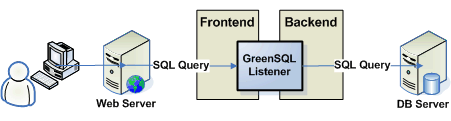
A GreenSQL Listener object is the heart of the GreenSQL Databae Firewall. A Listener is a proxy object used to connect queries from the frontend to a specific backend server. Before passing the query to the backend it is checked by the Listener to determine if it is malicious and if so how it should be handled (block, alert, pass).


GreenSQL

Thank you,
Arun Bagul

GRUB (GRand Unified Bootloader)

GRUB (GRand Unified Bootloader)

Introduction – GRUB (GRand Unified Bootloader) is the part of GNU project, which was originally designed and implemented by Erich Stefan Boleyn. GRUB is one of the best open source boot loader used to boot Linux operating system. Which can load a wide variety of free operating systems (Linux), as well as proprietary operating systems (like Windows) with chain-loading. LILO(Linux Loader) is another boot loader used in Linux. Now we will start with….

[1] What is Boot Loader? –

Boot Loader is the first software program that runs when a computer start. It is responsible for loading and transferring control to an operating system kernel software (for e.g. Linux kernel). The kernel, then initializes the rest of the operating system. GRUB understands filesystems and kernel executable formats, so you can load an arbitrary operating system the way you like, without recording the physical position of your kernel on the disk. Thus you can load the kernel just by specifying its file name and the drive and partition where the kernel resides.

When booting with GRUB, you can use either a command-line interface or a menu interface Using the command-line interface, you type the drive specification and file name of the kernel manually. In the menu interface, you just select an OS using the arrow keys. The menu is based on a configuration file which you prepare beforehand. While in the menu, you can switch to the command-line mode, and vice-versa. You can even edit menu entries before using them.

root@arunbagul:~# grub –version
grub (GNU GRUB 0.97)
root@arunbagul:~#

GRUB command-line (After booting OS)- just type ‘grub’ on bash command promt # for grub command-line.

root@arunbagul:~# grub
[ Minimal BASH-like line editing is supported. For
the first word, TAB lists possible command
completions. Anywhere else TAB lists the possible
completions of a device/filename. ]

grub>

* Possible GRUB command (just type TAB on grub command-line)

grub>

Possible commands are: blocklist boot cat chainloader clear cmp color configfile debug device displayapm displaymem dump embed find fstest geometry halt he
lp hide impsprobe initrd install ioprobe kernel lock makeactive map md5crypt module modulenounzip pager partnew parttype password pause print quit quiet rea
d reboot root rootnoverify savedefault serial setkey setup terminal terminfo testload testvbe unhide uppermem vbeprobe

grub>

[2] How to get help about any command line –

grub> help root
root: root [DEVICE [HDBIAS]]
Set the current “root device” to the device DEVICE, then attempt
to mount it to get the partition size (for passing the partition
descriptor in `ES:ESI’, used by some chain-loaded bootloaders),
the BSD drive-type (for booting BSD kernels using their native
boot format), and correctly determine the PC partition where a
BSD sub-partition is located. The optional HDBIAS parameter is a
number to tell a BSD kernel how many BIOS drive numbers are on
controllers before the current one. For example, if there is an
IDE disk and a SCSI disk, and your FreeBSD root partition is on
the SCSI disk, then use a `1′ for HDBIAS.
rootnoverify: rootnoverify [DEVICE [HDBIAS]]
Similar to `root’, but don’t attempt to mount the partition. This
is useful for when an OS is outside of the area of the disk that
GRUB can read, but setting the correct root device is still
desired. Note that the items mentioned in `root’ which derived
from attempting the mount will NOT work correctly.

grub> quit

root@arunbagul:~#

** Syntax and naming convention used in GRUB –

The device syntax used in GRUB is a bit different from normal syntax. First of all, GRUB requires that the device name be enclosed with “(” and “)“.
For example :-

(fd0)
(hd0,1)
(hd1,3)

Here “fd” means floppy disk, “hd” means Hard Disk. (fd0)- means first floppy drive , (hd0,1) – means first Hard Disk and first partition of first Hard Disk. and (hd1,3) – means 2nd Hard Disk and 3rd partition of 3rd Hard Disk. How to use GRUB command-line to boot system, please refer below…

NOTE – Drive number and Partition number start from zero(0). Use “tab” to see possible Drive, Partitions no etc.

[3] How to boot operating systems –

GRUB has two distinct boot methods.

a) Load an operating system directly,
b) Chain-loader –
load another boot loader which then will load an operating system.

GRUB support Multiboot. Linux/Unix like OS can be directly loaded, while other OS which are not supported like Windows can be loaded by using “Chain-loader” method.

Step(1)- Set root/boot drive –

* During GRUB menu you can select grub command-line by pressing “c” and to edit GRUB menu you can press “e“…

grub> root (hd0,
Possible partitions are:
Partition num: 0, Filesystem type unknown, partition type 0x7
Partition num: 1, Filesystem type unknown, partition type 0x7
Partition num: 2, Filesystem type is ext2fs, partition type 0x83
Partition num: 4, Filesystem type is ext2fs, partition type 0x83
Partition num: 5, Filesystem type is ext2fs, partition type 0x83
Partition num: 6, Filesystem type unknown, partition type 0x82
Partition num: 7, Filesystem type is ext2fs, partition type 0x83

grub> root (hd0,2)

grub> cat /grub/menu.lst

…..

* use this file to find out which will be your possible root partition..

grub> cat /
Possible files are: lost+found System.map-2.6.22-14-generic abi-2.6.22-14-generic config-2.6.22-14-generic initrd.img-2.6.22-14-generic.bak memtest86+.bin
vmlinuz-2.6.22-14-generic initrd.img-2.6.22-14-generic grub System.map-2.6.22-14-xen vmlinuz-2.6.22-14-xen config-2.6.22-14-xen xen-3.1.gz initrd.img-2.6.22
-14-xen initrd.img-2.6.22-14-xen.bak

Step(2) – Load kernel (don’t forget to mention your root partion ie /)-

grub> kernel /vmlinuz-2.6.22-14-generic root=/dev/sda5 ro quite splash

grub>

Step(3) How to load ‘initrd’ –

grub> initrd /initrd.img-2.6.22-14-generic

Step(4) Just Boot your OS –

grub> boot

*** That’s it to boot your system from GRUB command line!

[4] How Boot unsupported operating systems(OS) by using ‘chain-loader’ method-

Normally, the boot loader is embedded in the boot sector of the partition on which the operating system is installed. Use ‘rootnoverify’ command for setting the correct root device. this command don’t attempt to mount that partition.

Step(1) Set GRUB’s root device to the partition –

grub> rootnoverify (hd0,0)

Step(2) Set the active flag in the partition using ‘makeactive’ command –

grub> makeactive

Step(3) Load the boot loader with the command chainloader-

grub> chainloader +1

Step(4) Just Boot your OS –

grub> boot

* “+1” indicates that GRUB should read one sector from the start of the partition.

[5] How to read any file from GRUB command-line –

* you can easily find out which is the root partition (/) by looking the directory structure!!

grub> root (hd0,4)

grub> cat /
Possible files are: lost+found var boot home media usr etc cdrom bin dev initrd lib mnt opt proc root sbin srv sys tmp initrd.img vmlinuz home2 initrd.img.
old vmlinuz.old

grub> cat /etc/fstab
# /etc/fstab: static file system information.
#
#<file system> <mount point> <type> <options> <dump> <pass>
proc /proc proc defaults 0 0
/dev/sda5 / ext3 defaults,errors=remount-ro 0 1
/dev/sda3 /boot ext3 defaults 0 2
/dev/sda8 /home ext3 defaults 0 2
/dev/sda6 /usr ext3 defaults 0 2

grub>

[6] How to Boot DOS/Windows from 2nd Hard Disk –

If you have installed DOS (or Windows) on a non-first hard disk, you have to use the disk swapping technique, because that OS cannot boot from any disks but the first one. Use “map” command. This performs a virtual swap between your first and second hard drive.

grub> map (hd0) (hd1)
grub>
grub> map (hd1) (hd0)
grub>

NOTE: This is effective only if DOS (or Windows) uses BIOS to access the swapped disks. If that OS uses a special driver for the disks, this probably
won’t work.

** Another problem arises if you installed more than one set of DOS/Windows onto one disk, because they could be confused if there are more than one primary partitions for DOS/Windows. Certainly you should avoid doing this, but there is a solution if you do want to do so. Use the partition hiding/unhiding technique. If GRUB hides a DOS/Windows partition, DOS/Windows will ignore the partition. If GRUB unhides a DOS/Windows partition, DOS/Windows will detect the partition.

grub> help hide
hide: hide PARTITION
Hide PARTITION by setting the “hidden” bit in its partition type code.

grub> root (hd0,
Possible partitions are:
Partition num: 0, Filesystem type unknown, partition type 0x7
Partition num: 1, Filesystem type unknown, partition type 0x7
Partition num: 2, Filesystem type is ext2fs, partition type 0x83
Partition num: 4, Filesystem type is ext2fs, partition type 0x83
Partition num: 5, Filesystem type is ext2fs, partition type 0x83
Partition num: 6, Filesystem type unknown, partition type 0x82
Partition num: 7, Filesystem type is ext2fs, partition type 0x83

grub> hide (hd0,2)

grub> root (hd0,
Possible partitions are:
Partition num: 0, Filesystem type unknown, partition type 0x7
Partition num: 1, Filesystem type unknown, partition type 0x7
Partition num: 2, Filesystem type unknown, partition type 0x93
Partition num: 4, Filesystem type is ext2fs, partition type 0x83
Partition num: 5, Filesystem type is ext2fs, partition type 0x83
Partition num: 6, Filesystem type unknown, partition type 0x82
Partition num: 7, Filesystem type is ext2fs, partition type 0x83

grub>

grub> help unhide
unhide: unhide PARTITION
Unhide PARTITION by clearing the “hidden” bit in its partition type code.

grub>

For example … see below

grub> unhide (hd0,0)
grub> hide (hd0,3)
grub> rootnoverify (hd0,0)
grub> chainloader +1
grub> makeactive
grub> boot

Thank you,

Arun Bagul

built-in SQL functions

built-in SQL functions

Introduction – The SQL so far is part of the standard that all SQL implementations. Now let’s about the most useful, but most difficult areas of SQL – built-in SQL functions.

Types of functions –

Like most computer languages, SQL includes the capability to perform functions on data. However, each database vendor has implemented their own set of functions. Not only does each vendor choose which functions they will support, different vendors implement the same functionality using different syntax! This basically means that as soon as you open the door to functions, your database code stops being portable. For traditional database applications, that is less of an issue, but for web-based applications using tools like PHP, it means that the SQL functions you embedded in your web application will break when you move from MySQL to Oracle or to SQL-Server. To make matters worse, SQL functions often provide significant performance gains for all sorts of database manipulation, particularly in the case of web applications.

So what’s a we should to do? My advice is to use functions anywhere you can produce a measurable performance gain and document thoroughly what database the SQL was intended to work with. As we’ll talk about in a future column, moving any function-oriented code to a database stored procedure and essentially “black-boxing” it is an excellent approach — this lets the DBA rewrite the stored procedures for optimal performance — but some databases do not support stored procedures, so this is not a perfect solution. There are a number of functions that are available in a wide range of databases, so you can usually get the functionality you need as long as the functions are not too exotic.

There are four basic types of functions –

1) Numeric functions – for statistical, trigonometric, and other mathematical operations,
2) Text functions – for formatting and manipulating text values,
3) Time/date functions – used to parse date values as well as manipulate the date itself, and
4) System functions – for returning database-specific information (such as a username).

How do you know what functions your database supports? Unfortunately, the only reliable way is to check the documentation. As a general rule of thumb, the more a database costs (or the more widely it is used for open source databases), the more functions it supports. Functions open up a huge range of additional functionality for SQL developers, but at the cost of portability between database platforms. However, functions provide improved functionality and performance for data-intensive applications.

How to use functions?

Functions in SQL are typically used in WHERE clauses, though they generally can be used anywhere you’d use a field name or value. One of the easiest ways to learn functions is to see a few in action. We’ll start with a SELECT statement to find names longer than 12 characters…

Step(1) Create Table – student –

mysql> use SQL_function;
Database changed
mysql> show tables;
Empty set (0.00 sec)

mysql> CREATE TABLE student ( name varchar(40) );

Query OK, 0 rows affected (0.00 sec)
mysql>

mysql> show tables;
+————————+
| Tables_in_SQL_function |
+————————+
| student |
+————————+
1 row in set (0.00 sec)

mysql> desc student;
+——-+————-+——+—–+———+——-+
| Field | Type | Null | Key | Default | Extra |
+——-+————-+——+—–+———+——-+
| name | varchar(40) | YES | | NULL | |
+——-+————-+——+—–+———+——-+
1 row in set (0.00 sec)

Step(2) INSERT Few records in student table –

mysql> INSERT INTO student VALUES(‘Arun Bagul’);
Query OK, 1 row affected (0.00 sec)

mysql> INSERT INTO student VALUES(‘Sri madhanvan’);
Query OK, 1 row affected (0.00 sec)

mysql> INSERT INTO student VALUES(‘Hari madhanvan’);
Query OK, 1 row affected (0.00 sec)

mysql> SELECT name FROM student;
+—————-+
| name |
+—————-+
| Arun Bagul |
| Sri madhanvan |
| Hari madhanvan |
+—————-+
3 rows in set (0.00 sec)

mysql>

Step(3) Use functions in WHERE clause –

mysql> SELECT name FROM student WHERE length(name) > 12 ;
+—————-+
| name |
+—————-+
| Sri madhanvan |
| Hari madhanvan |
+—————-+
2 rows in set (0.00 sec)

mysql>

Thank you,
Arun Bagul